
VS Code
This documentation is provided for informational purposes only and demonstrates how to configure and use our API with third-party AI chat interfaces. Any third-party software, websites, or services mentioned are not operated, controlled, or endorsed by us.
Introduction to VS Code
Section titled “Introduction to VS Code”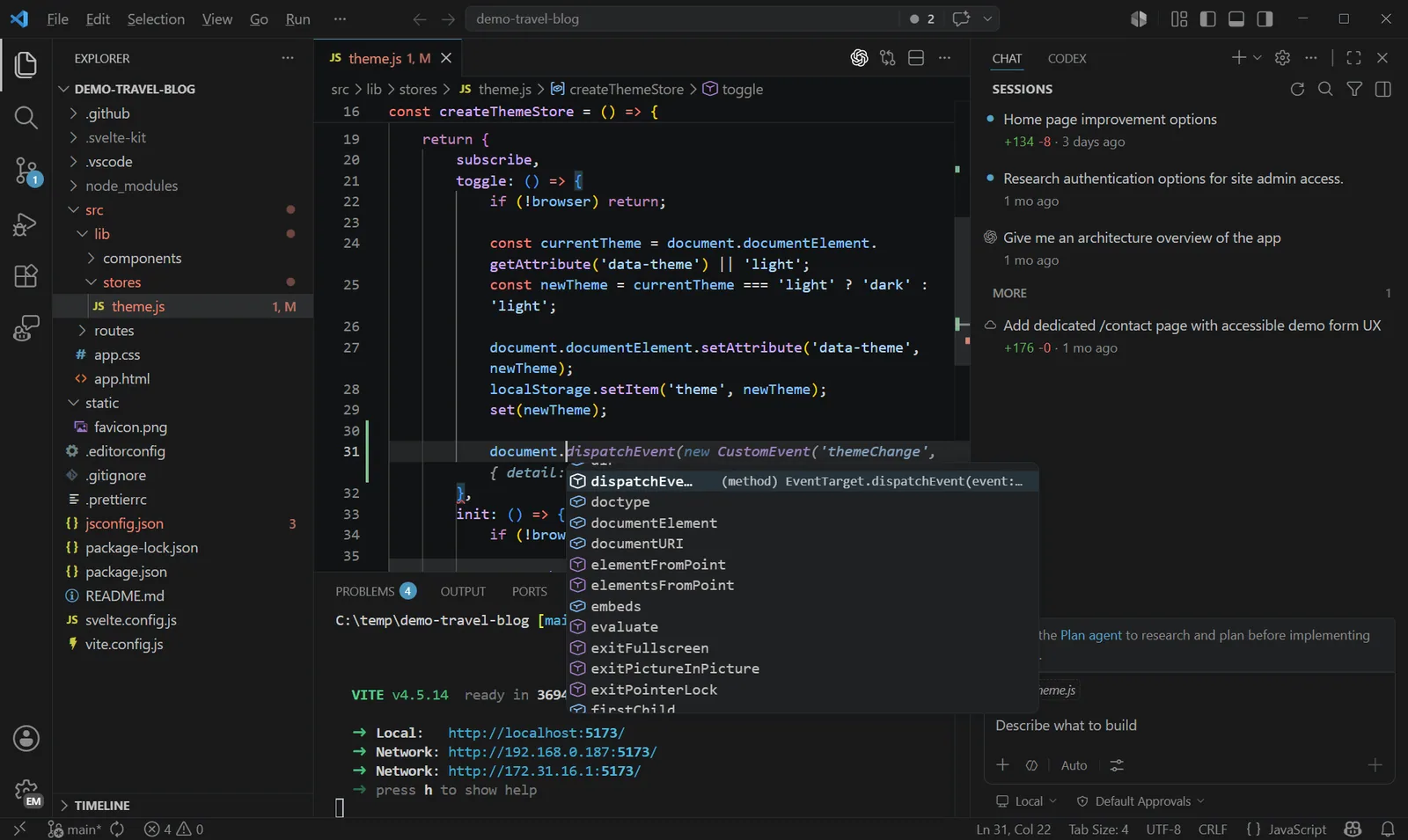
Visual Studio Code is a distribution of the Code - OSS repository with Microsoft-specific customizations released under a traditional Microsoft product license.
Visual Studio Code combines the simplicity of a code editor with what developers need for their core edit-build-debug cycle. It provides comprehensive code editing, navigation, and understanding support along with lightweight debugging, a rich extensibility model, and lightweight integration with existing tools.
Install VS Code
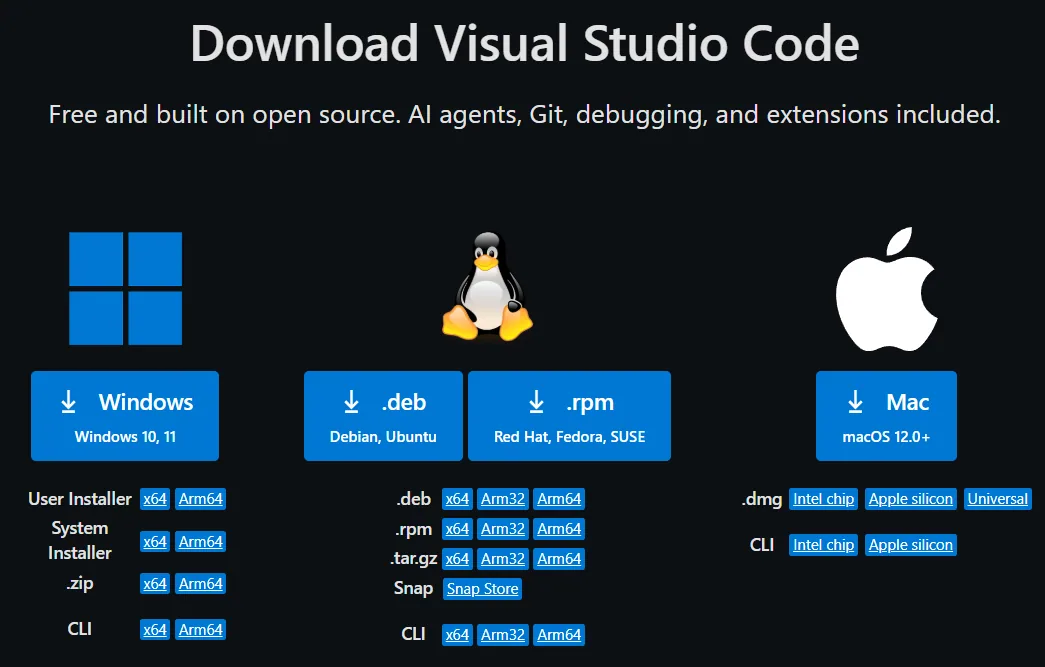
Visual Studio Code is updated monthly with new features and bug fixes. You can download it for Windows, macOS, and Linux on Visual Studio Code’s website. To get the latest releases every day, install the Insiders build.
Model Configuration & API Key
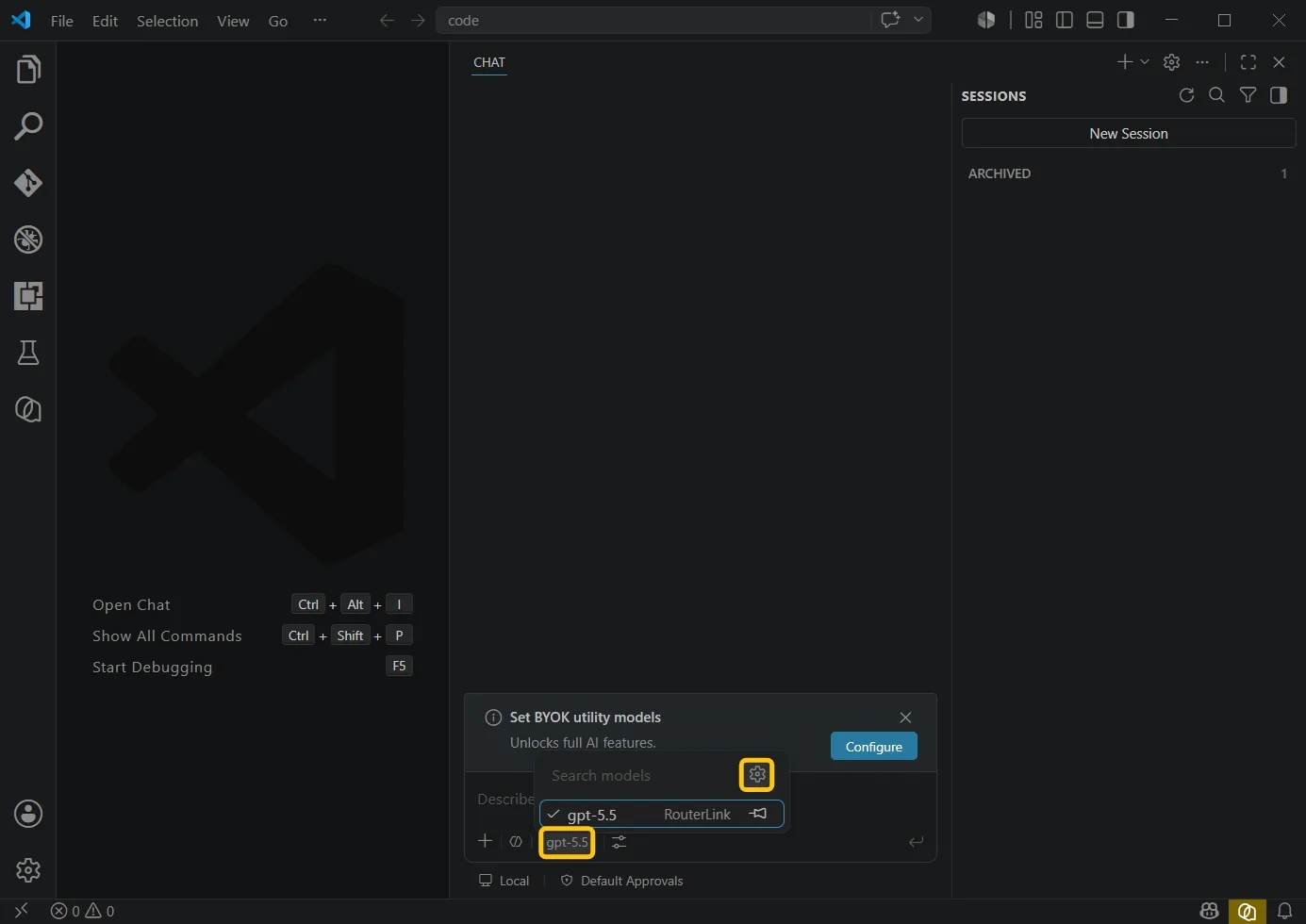
Click the Toggle Chat button at the top (shortcut: Ctrl+Alt+I). Click the model at the bottom, then click the Settings icon.
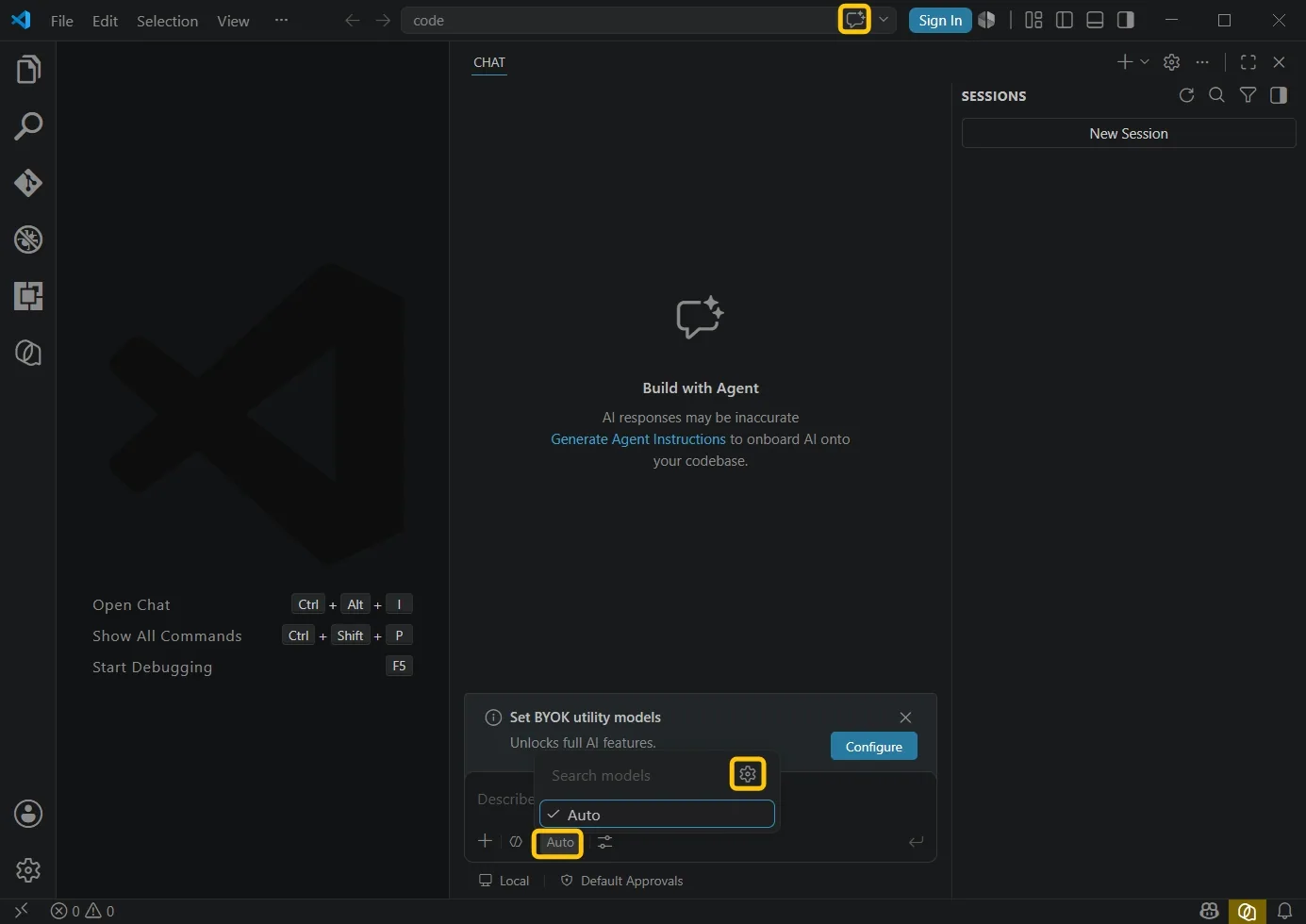
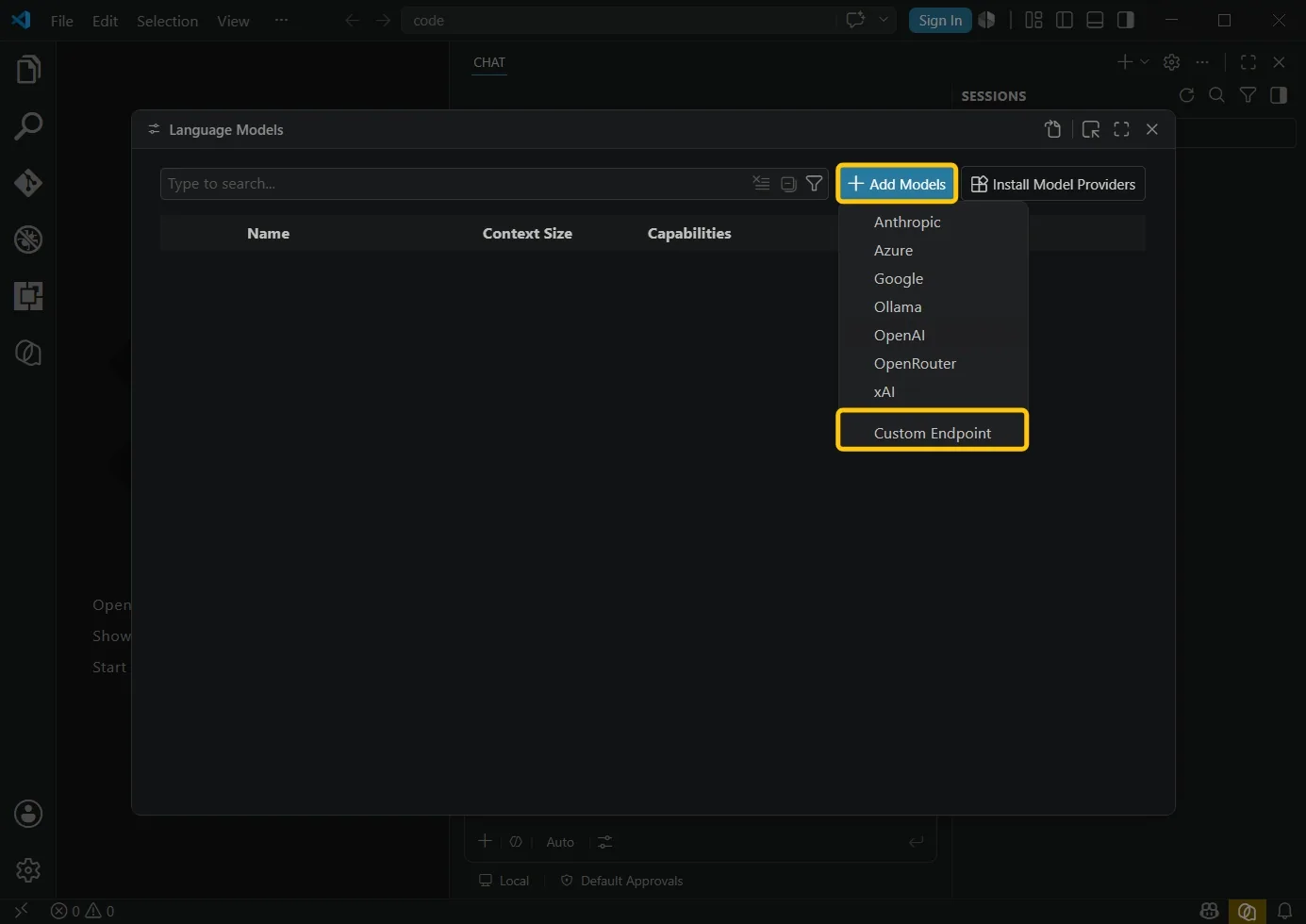
Select “Add Model”, then click “Custom Endpoint”.
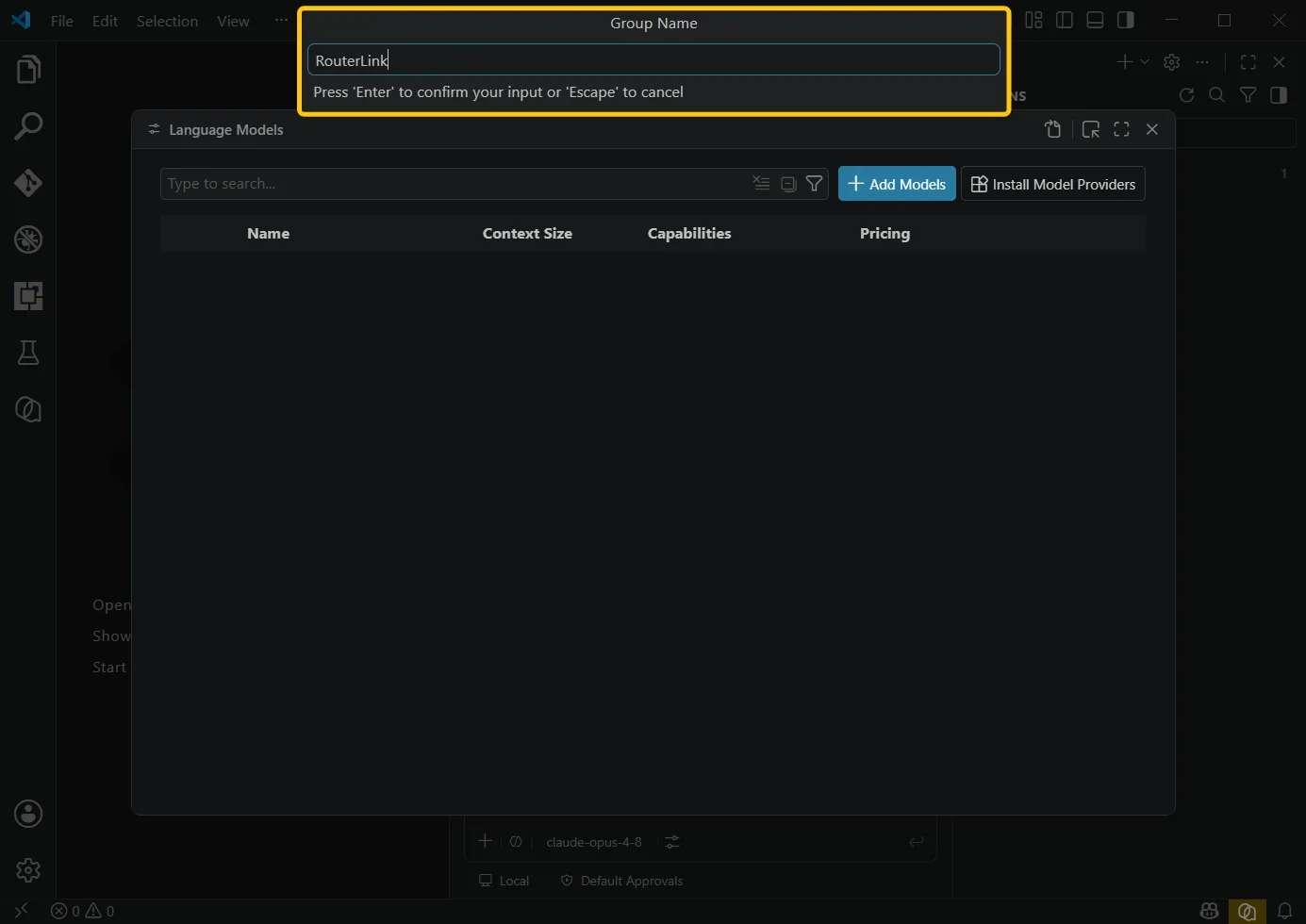
Enter any group name.
Enter your API key, which you can obtain from RouterLink.

If you want to use models from RouterLink:
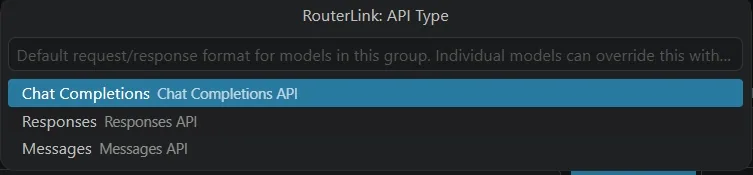
For OpenAI-compatible models, select Chat Completions.
For Anthropic-compatible models, select Messages API.
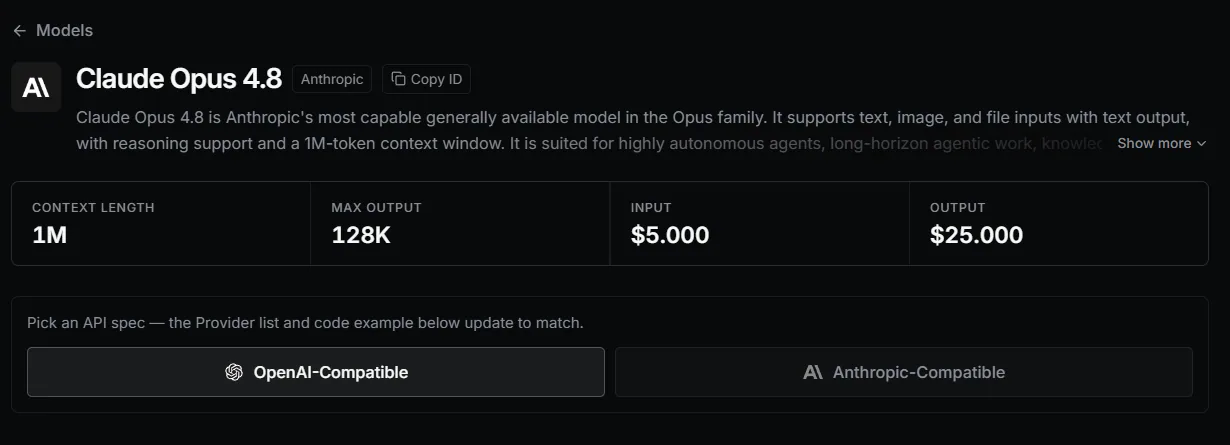
Using GPT-5.5 as an example, enter the following information:
| Field | Content |
|---|---|
| id | gpt-5.5 |
| name | gpt-5.5 |
| url | https://router-link.world3.ai/api/v1 |
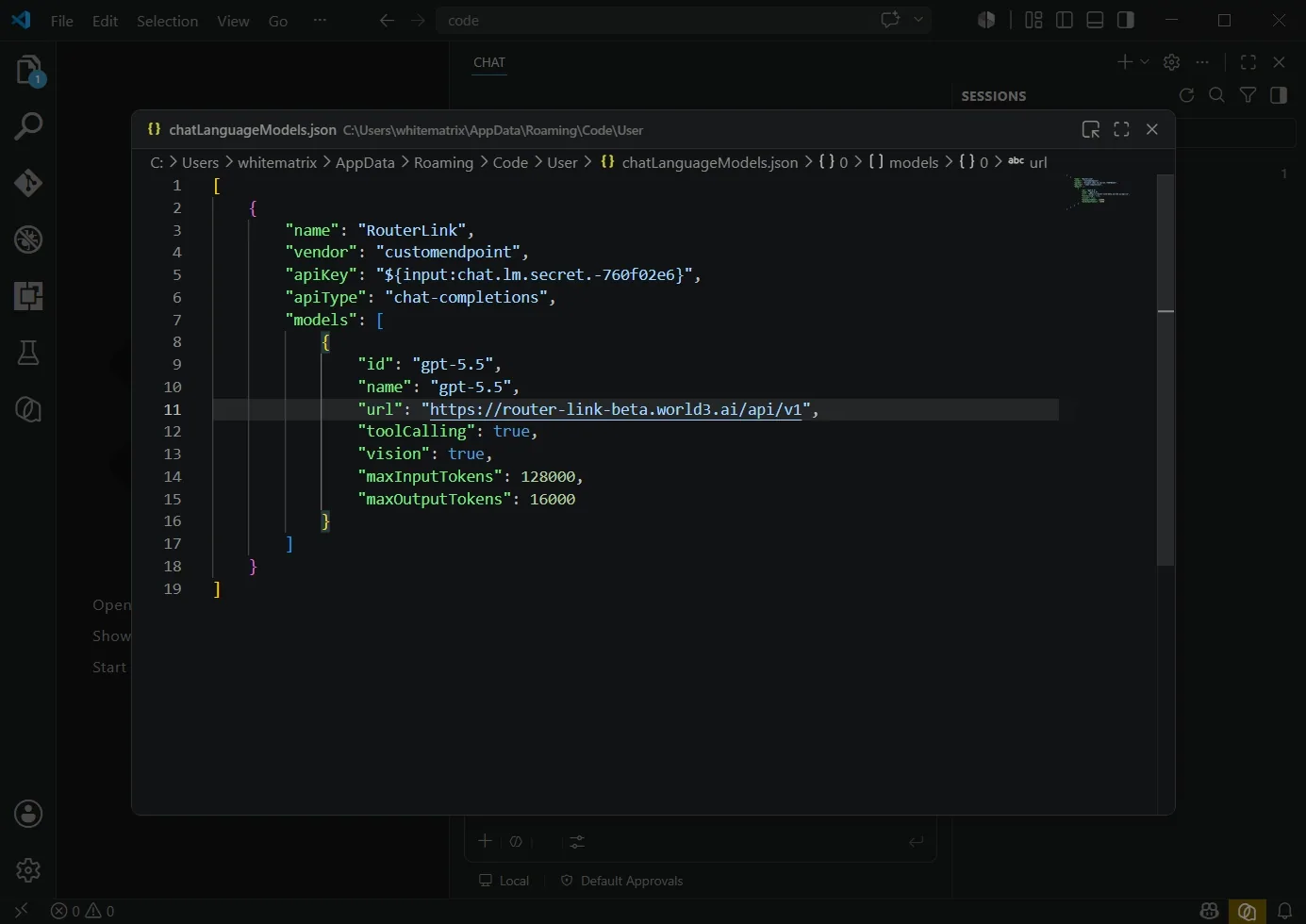
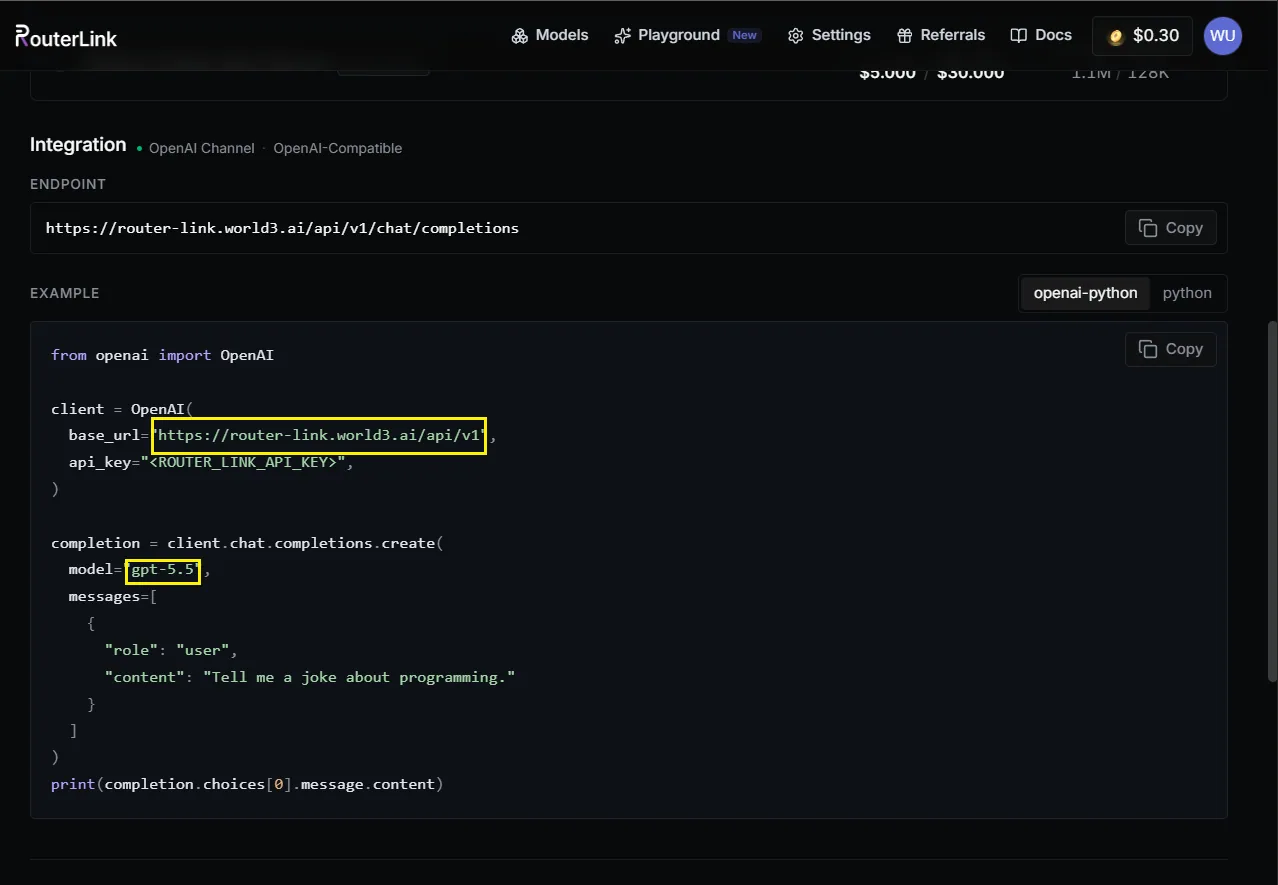
Press Ctrl + S to save, then click Close.
If you want to add another model, take Claude Opus 4.8 as an example.
Then, click the model at the bottom again and click the Settings icon.
Repeat the previous steps, and select Messages as the API Type.
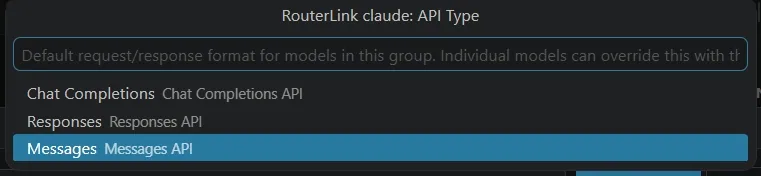
Enter the following information for the Anthropic-compatible Claude Opus 4.8 model:
| Field | Content |
|---|---|
| id | claude-opus-4-8 |
| name | claude-opus-4-8 |
| url | https://router-link.world3.ai/api |
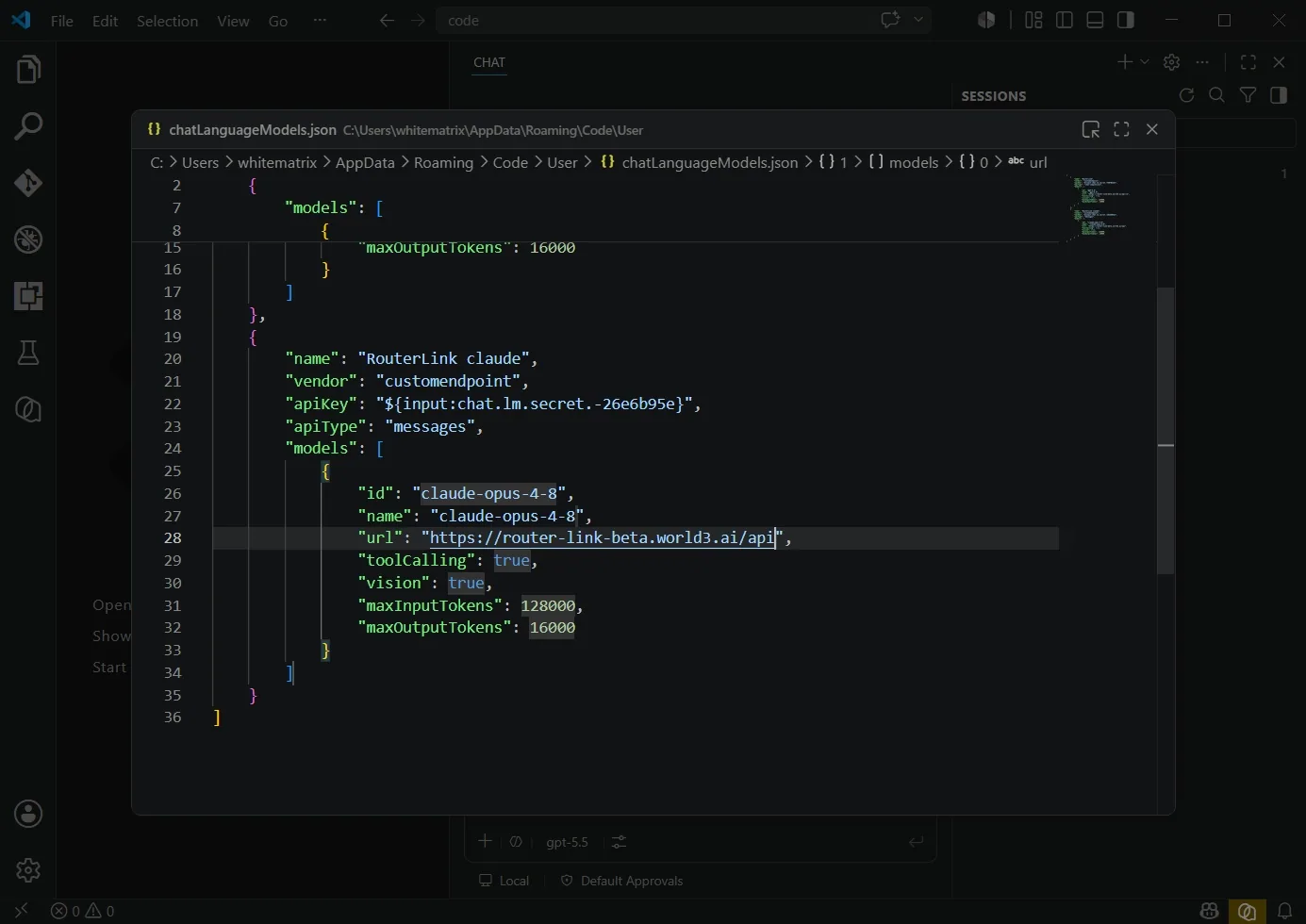
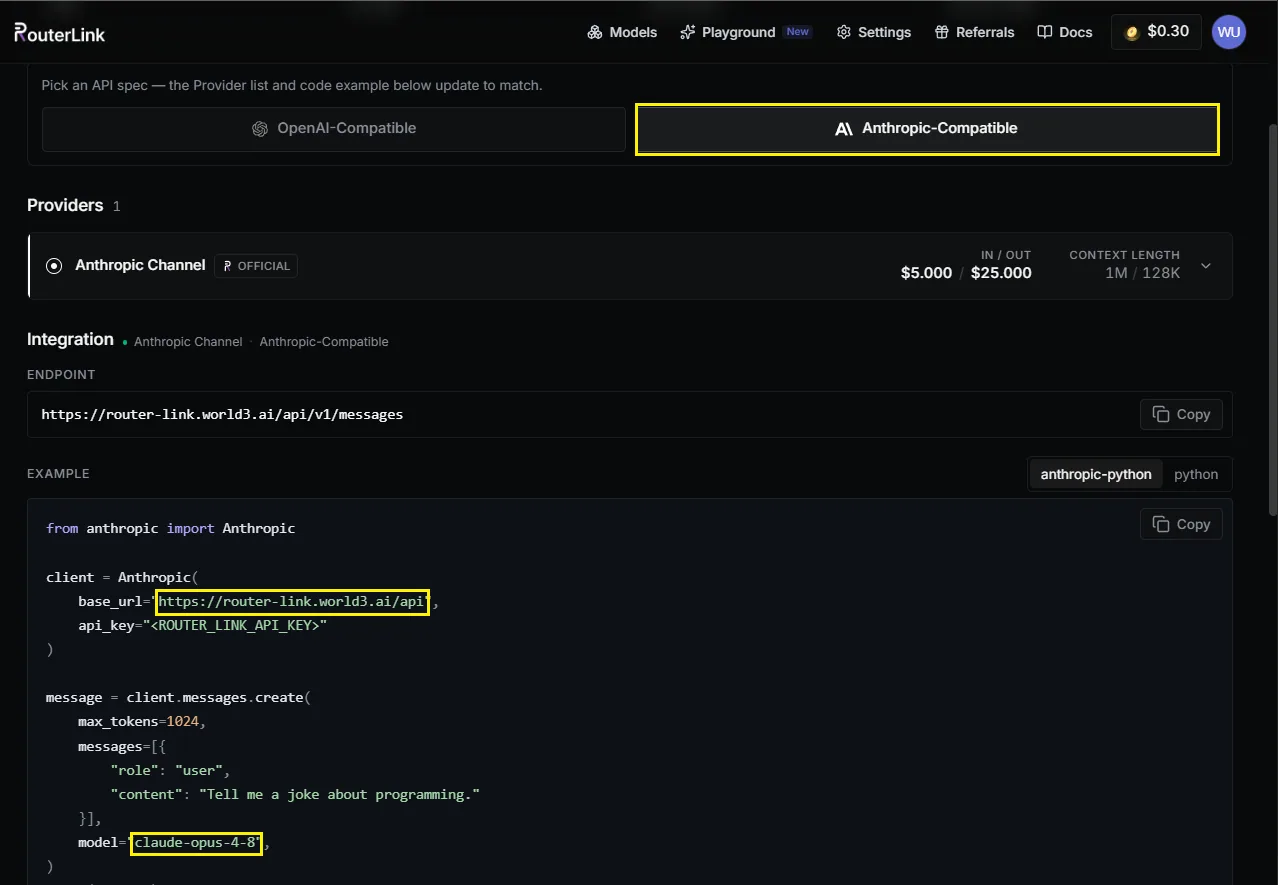
Press Ctrl + S to save, then click Close.
Use VS Code
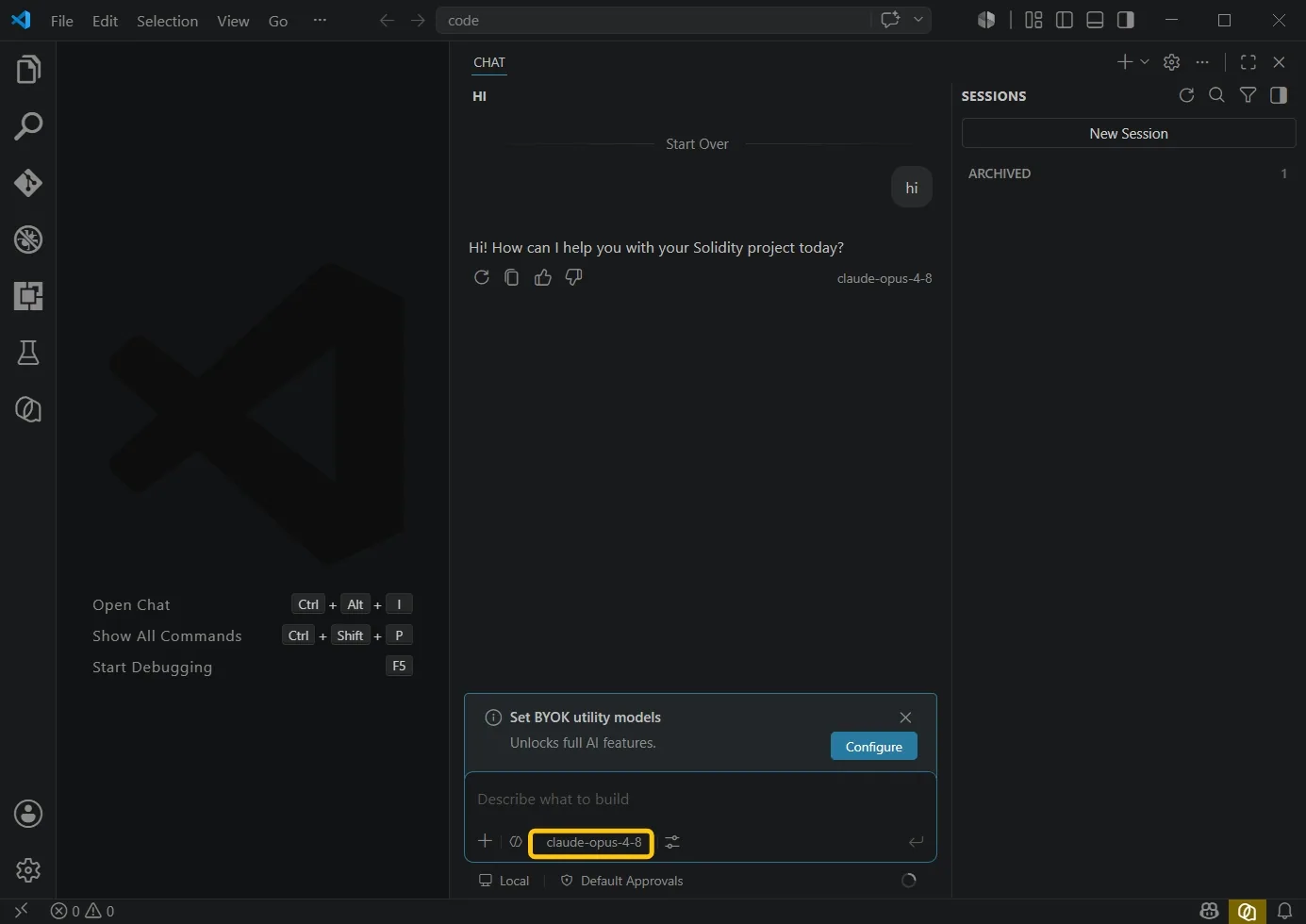
Select the model you just configured from the bottom menu.
You’re now ready to start using it.