

Roo Code Plugin
This documentation is provided for informational purposes only and demonstrates how to configure and use our API with third-party AI chat interfaces. Any third-party software, websites, or services mentioned are not operated, controlled, or endorsed by us.

Introduction to Roo Code
Section titled “Introduction to Roo Code”What Can Roo Code Do For YOU?
- Generate Code from natural language descriptions and specs
- Adapt with Modes: Code, Architect, Ask, Debug, and Custom Modes
- Refactor & Debug existing code
- Write & Update documentation
- Answer Questions about your codebase
- Automate repetitive tasks
- Utilize MCP Servers
Install Roo Code
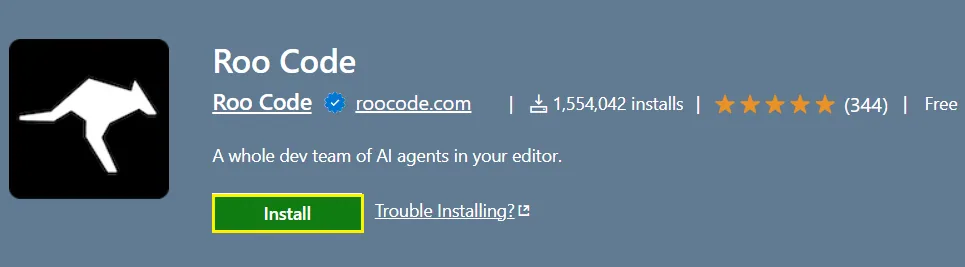
Install the Roo Code extension from the VS Code Marketplace.
Model Configuration & API Key
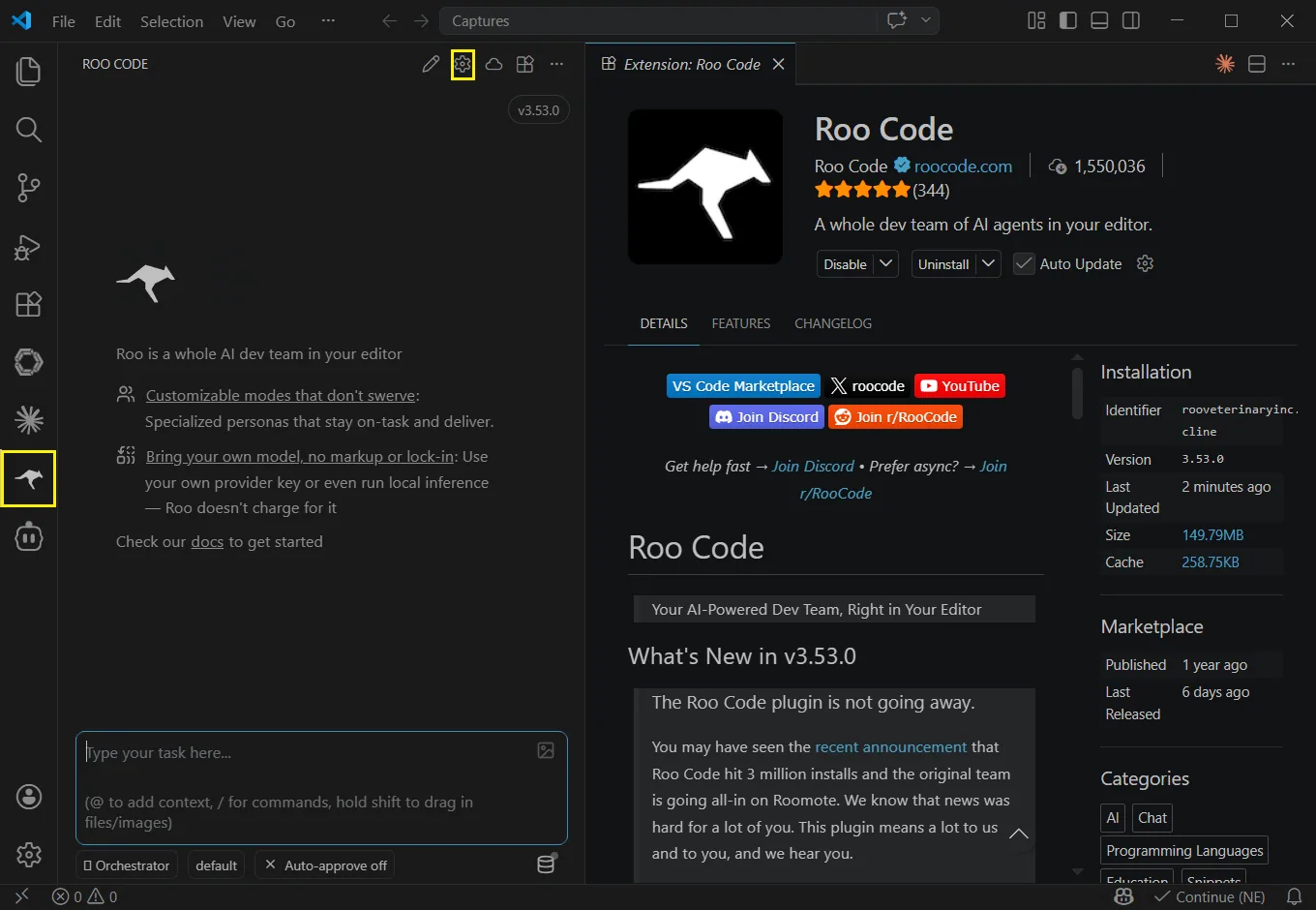
Click the “Roo Code” icon on the sidebar to launch. And click the settings in the top-right corner. If Roo Code prompts you to create an account, please select “Use without an account” and choose a third-party provider.
Enter the following configuration information in these fields.
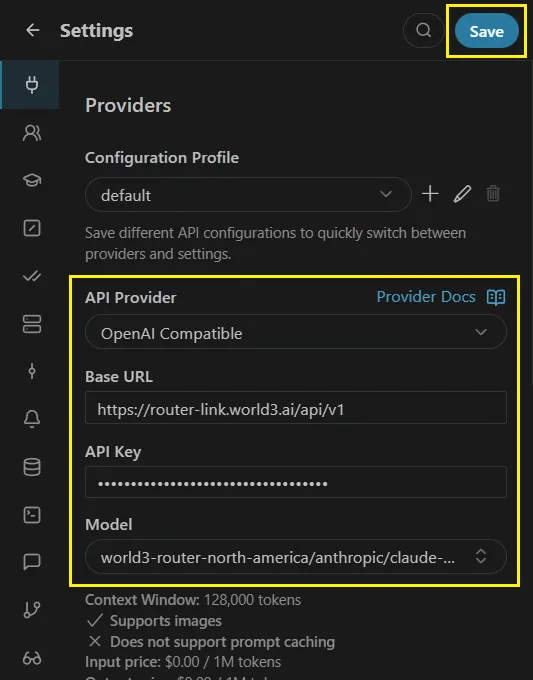
Example using claude-opus-4.7 with the API format set to OpenAI. Then click “Save”.
| Field | Content |
|---|---|
| API Provider | Select “OpenAI Compatible” |
| Base URL | https://router-link.world3.ai/api/v1 |
| API Key | Obtain one from RouterLInk |
| Model | claude-opus-4-7 |
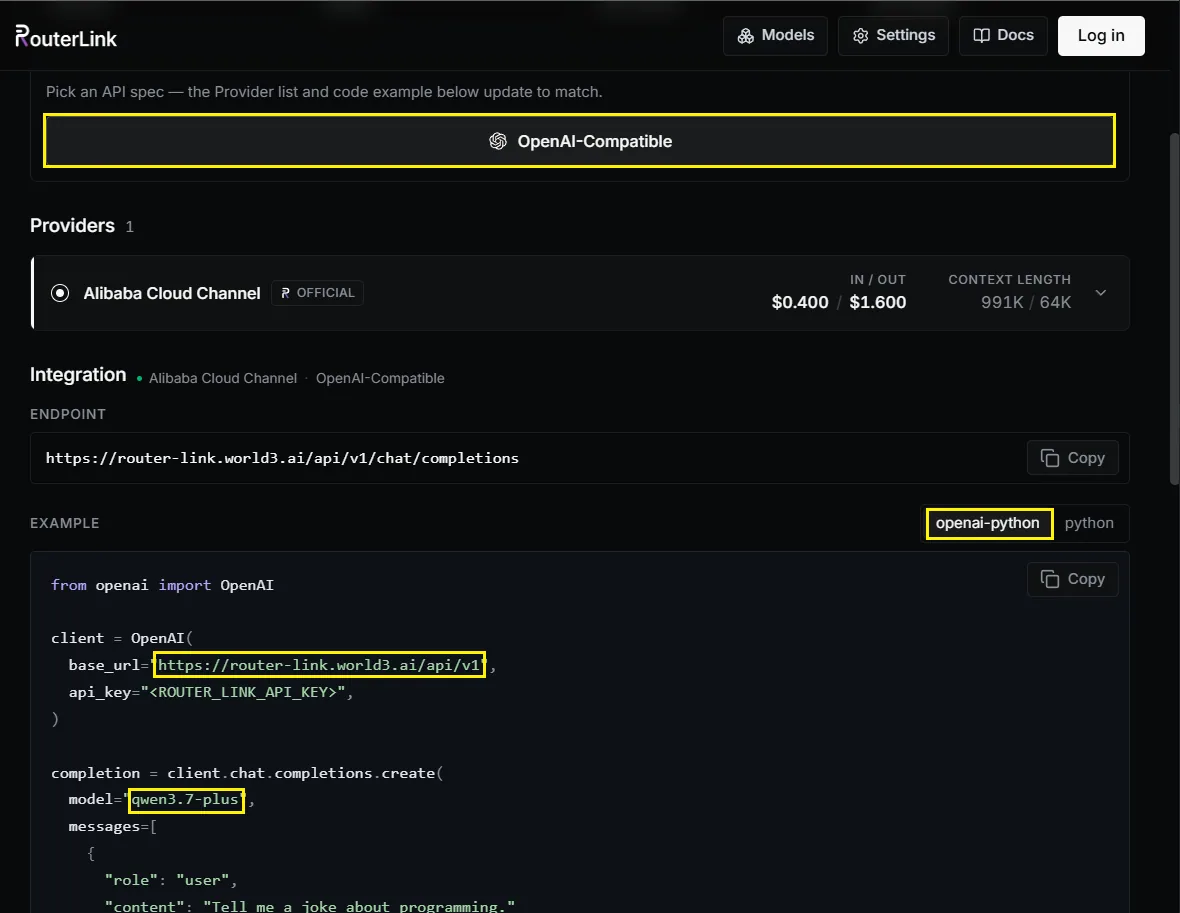
You can change the model manually with the Model ID (OpenAI-compatible API format is required):
Use Roo Code
Type a clear, concise description of what you want Roo Code to do in the chat box at the bottom of the panel. Examples of effective tasks:
- “Create a file named
hello.txtcontaining ‘Hello, world!’.” - “Write a Python function that adds two numbers.”
- “Create an HTML file for a simple website with the title ‘Roo test’”
No special commands or syntax needed—just use plain.
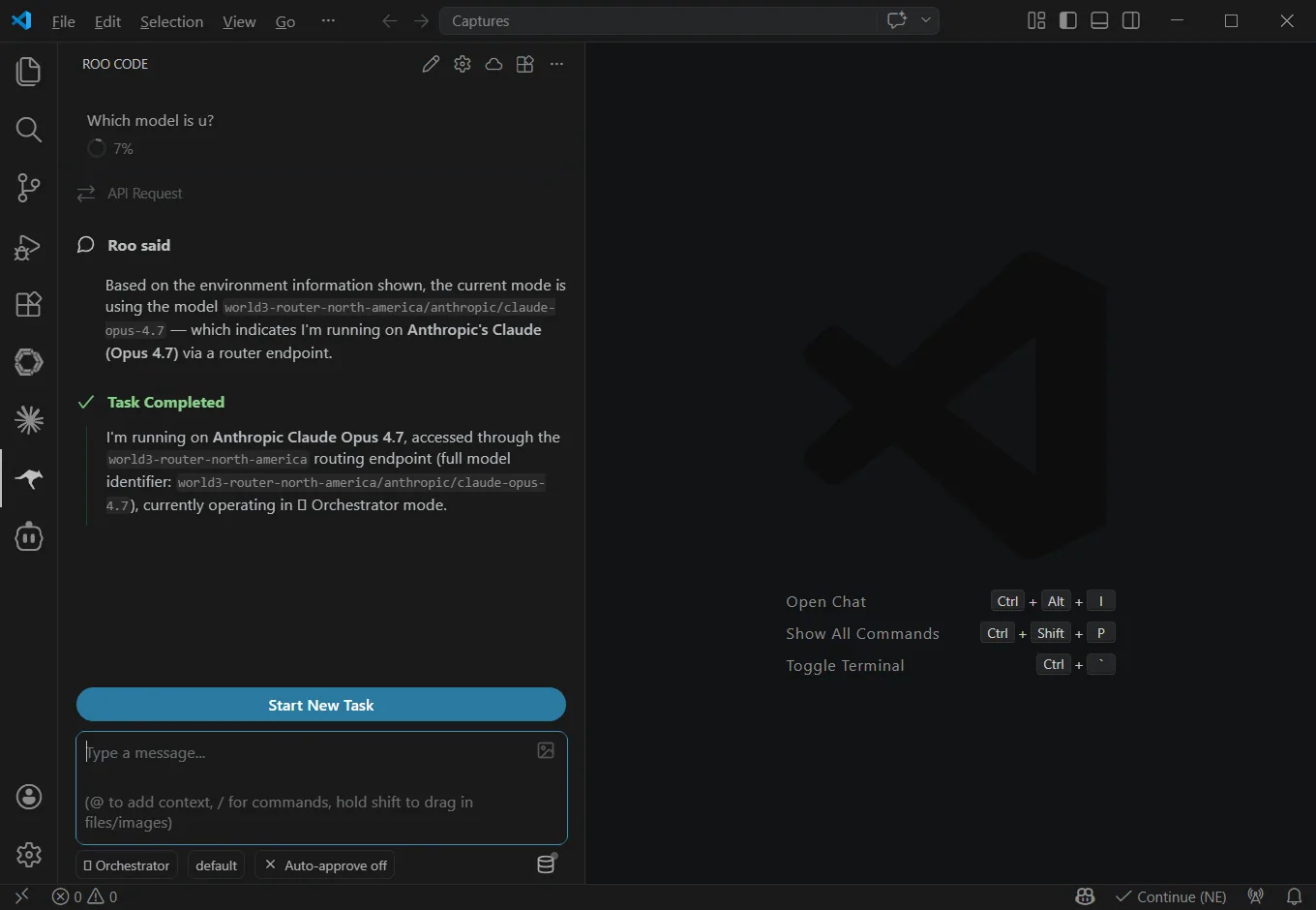
You can click the “Default” button below to add more models.
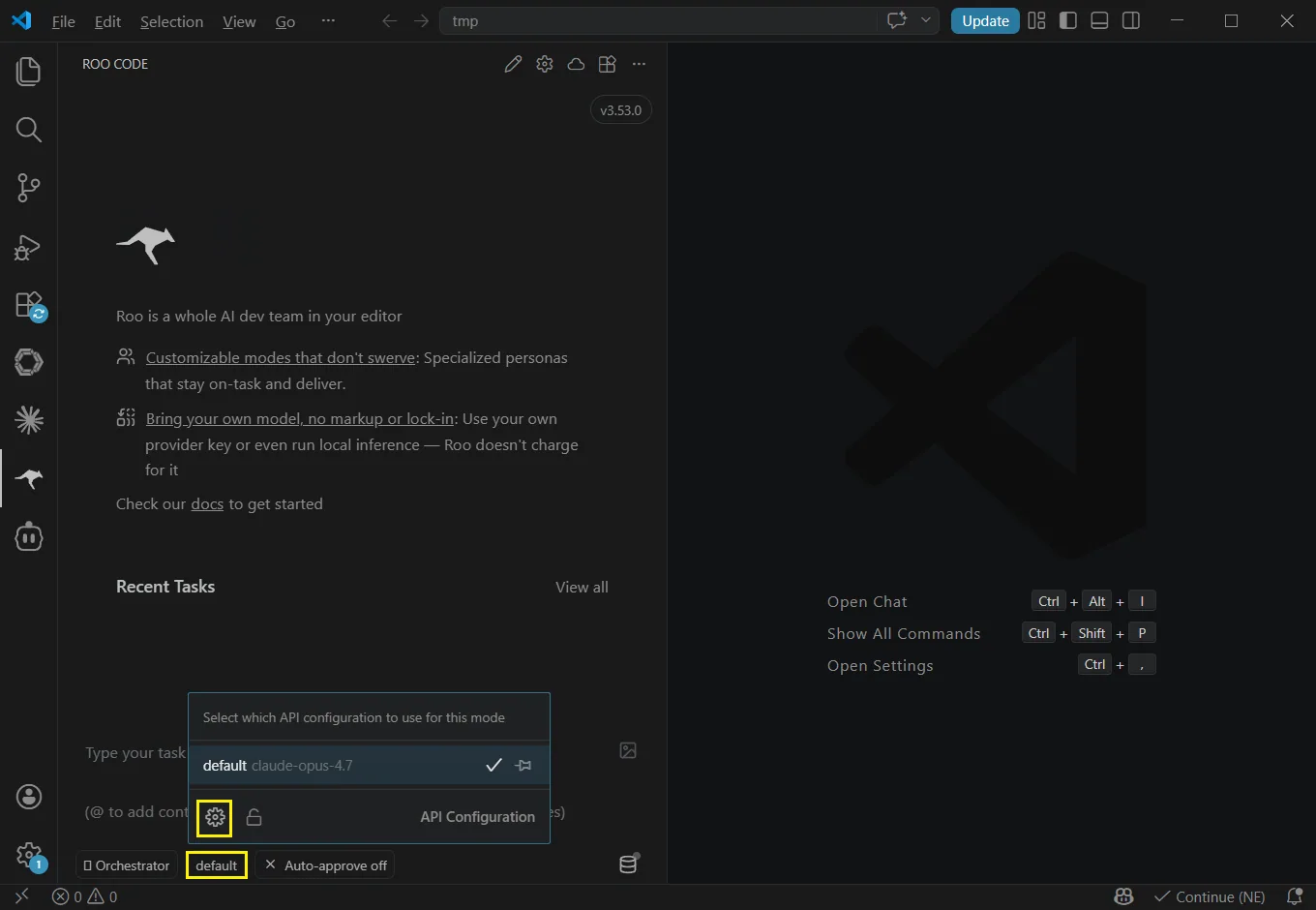
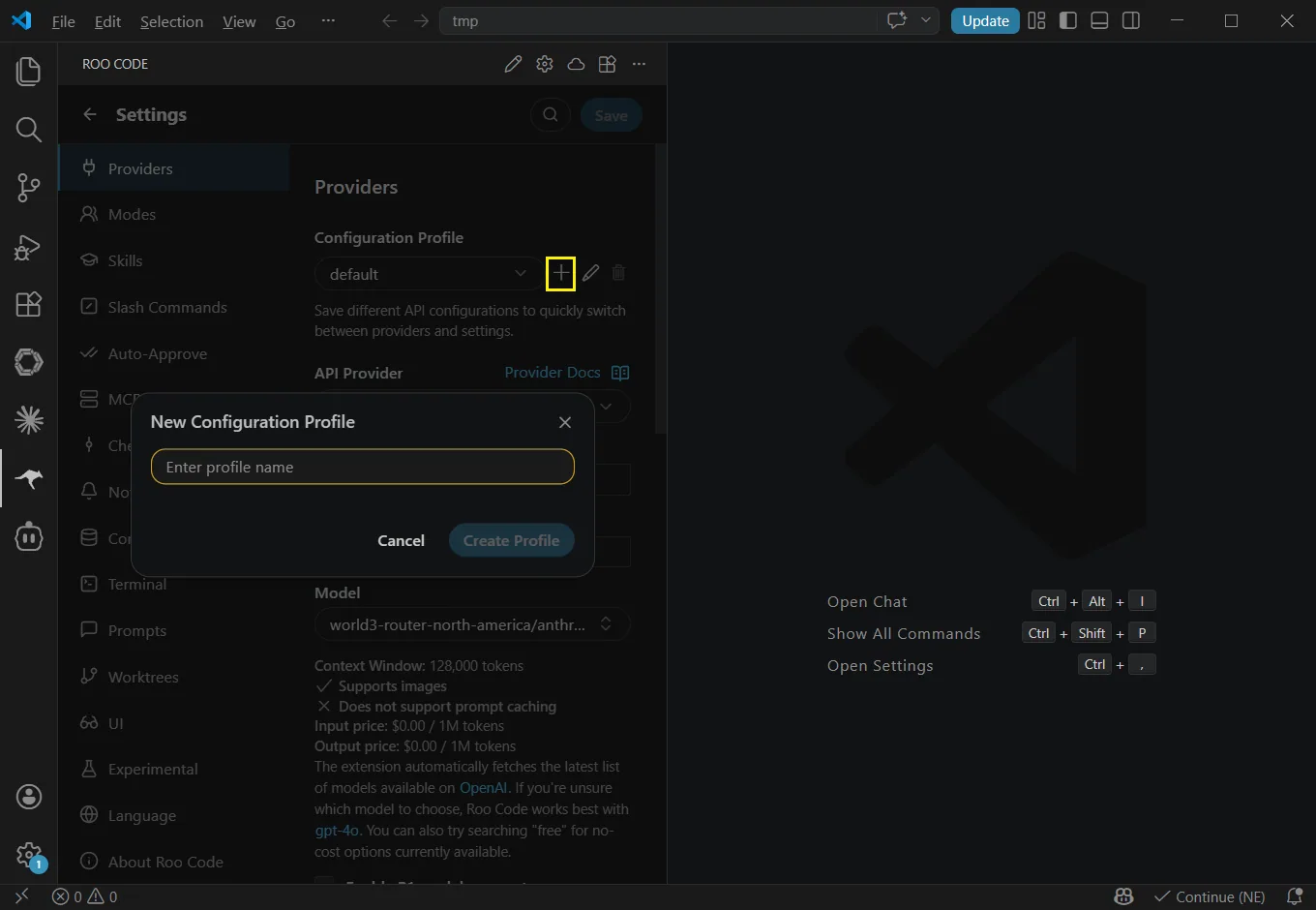
Troubleshooting
Section titled “Troubleshooting”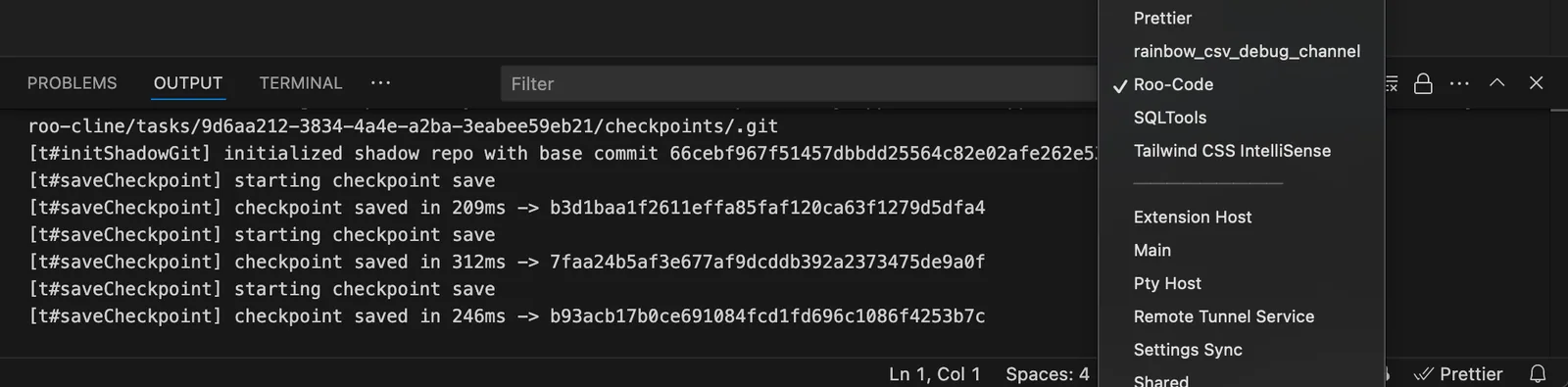
VS Code Output panel showing Roo Code logs for troubleshooting
Extension Not Visible
- Restart VS Code
- Verify Roo Code is listed and enabled in Extensions
- Try disabling and re-enabling
- Check Output panel for errors (View → Output, select “Roo Code”)
Installation Problems
- Ensure stable internet connection
- Verify VS Code version 1.84.0 or later
- If VS Code Marketplace is inaccessible, try the Open VSX Registry method