RouterLink Starter
RouterLink Starter is currently in beta. If you encounter any issues, please contact us at support@routerlink.ai.
Introduction to RouterLink Starter
Section titled “Introduction to RouterLink Starter”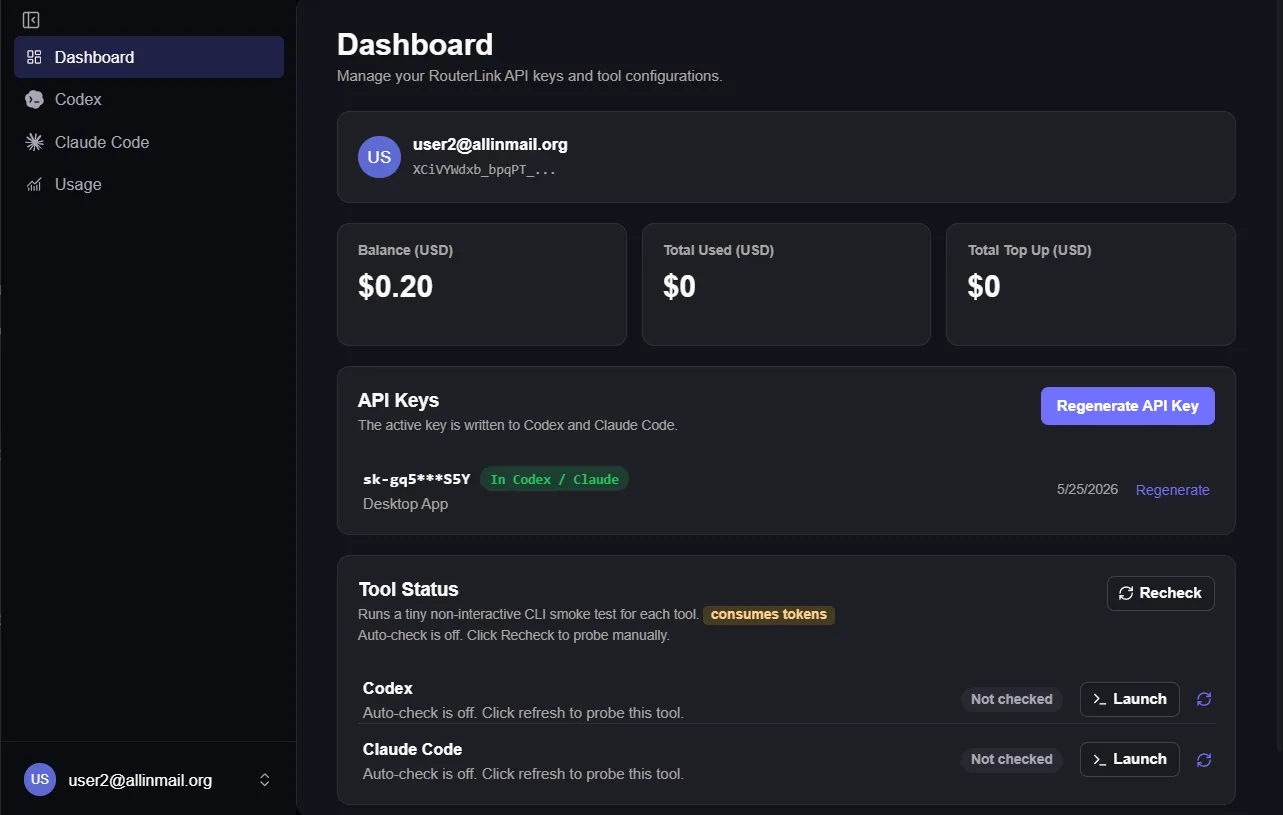
RouterLink Starter is an official desktop application developed by RouterLink, providing one-click installation, configuration, and management for Claude Code CLI & Codex.
Install
Windows users may encounter a “ prevented an unrecognized app from starting” warning. This is normal — please select “Run anyway.”
Download: https://routerlink.ai/download
Currently available for Windows and macOS.
Configure
After entering the Starter, click “Get Started”.
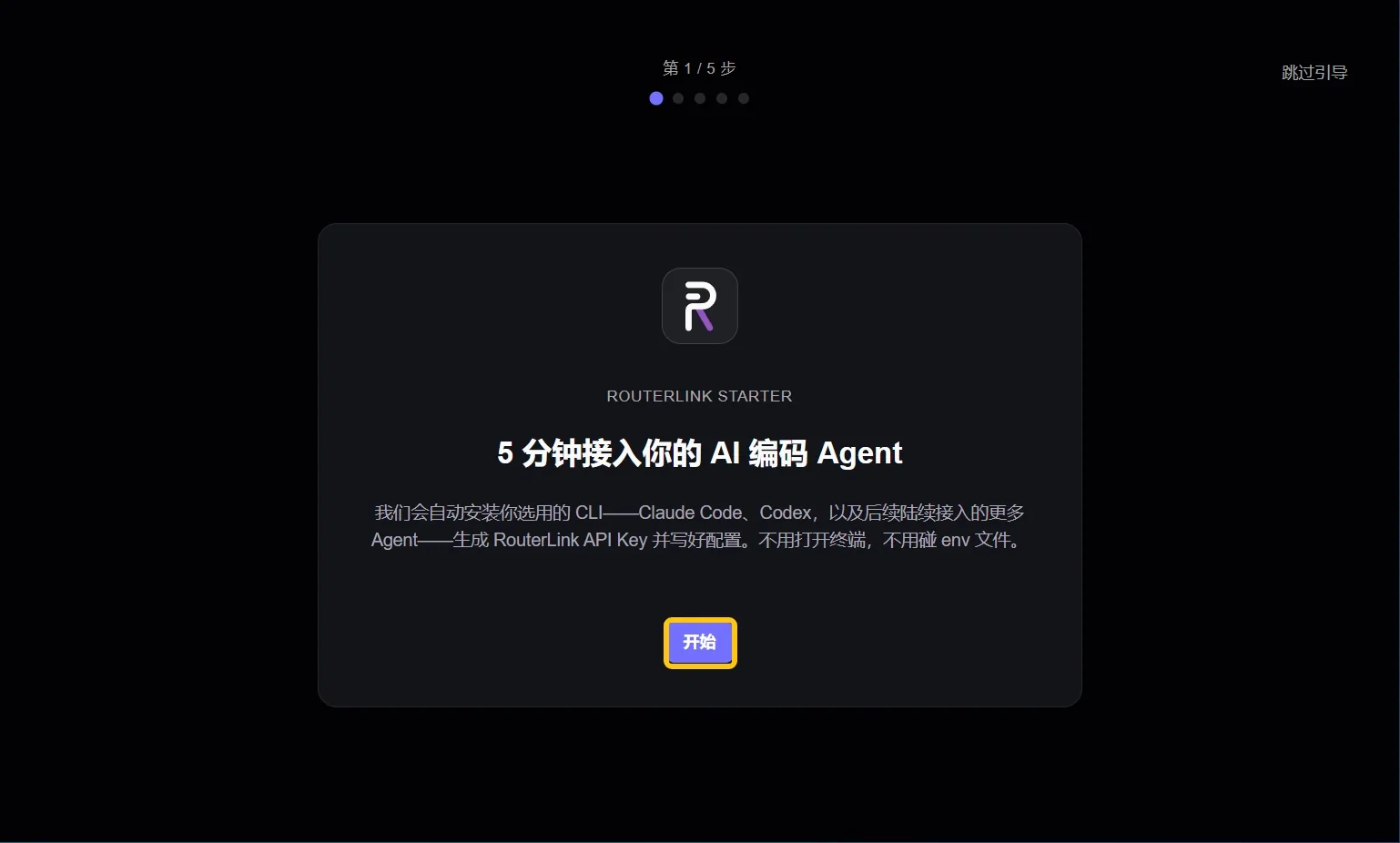
Sign in to your RouterLink account using your email. If you don’t have an account, one will be created automatically.
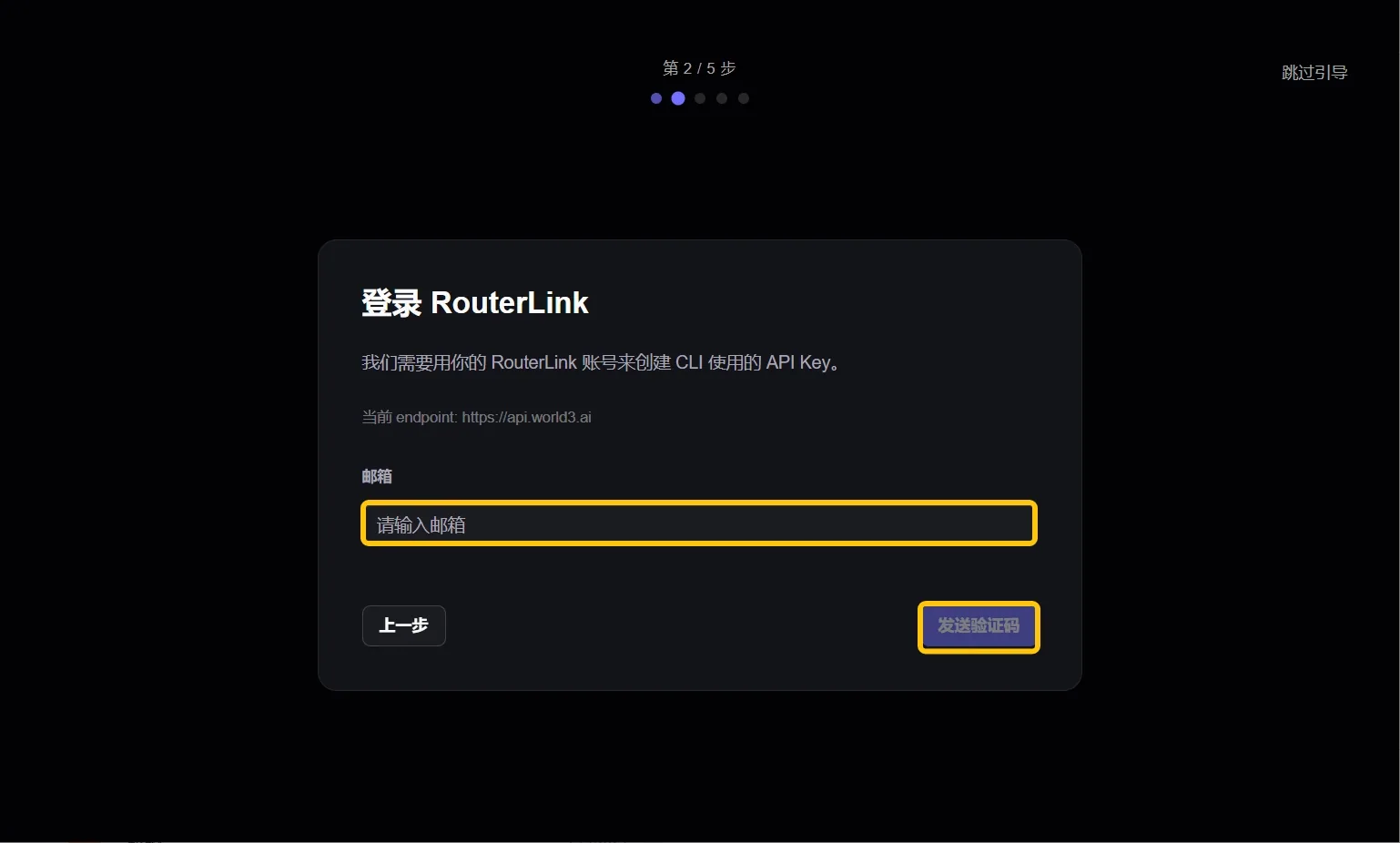
Make sure Node.js and the coding agent you want to use have been installed.
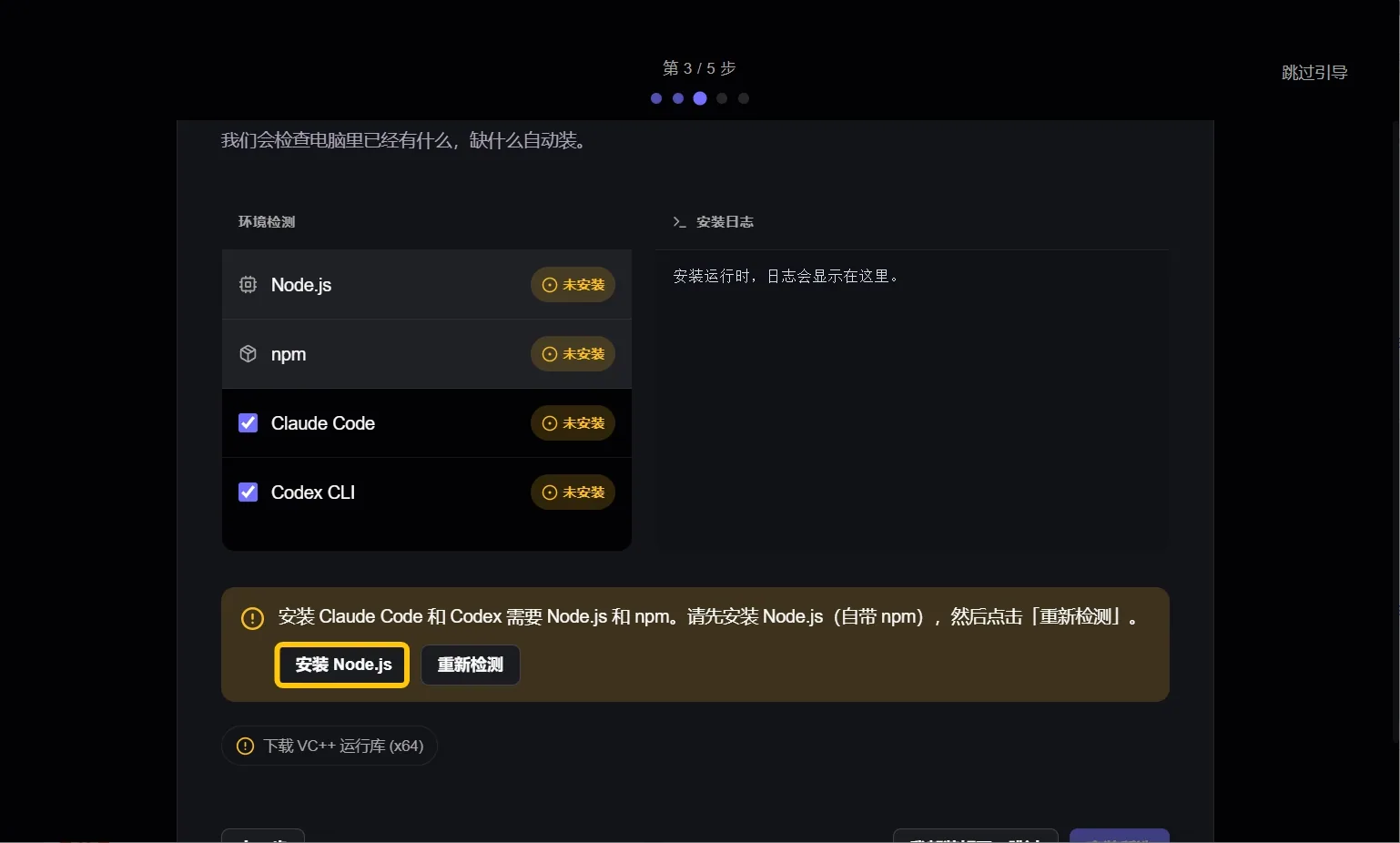
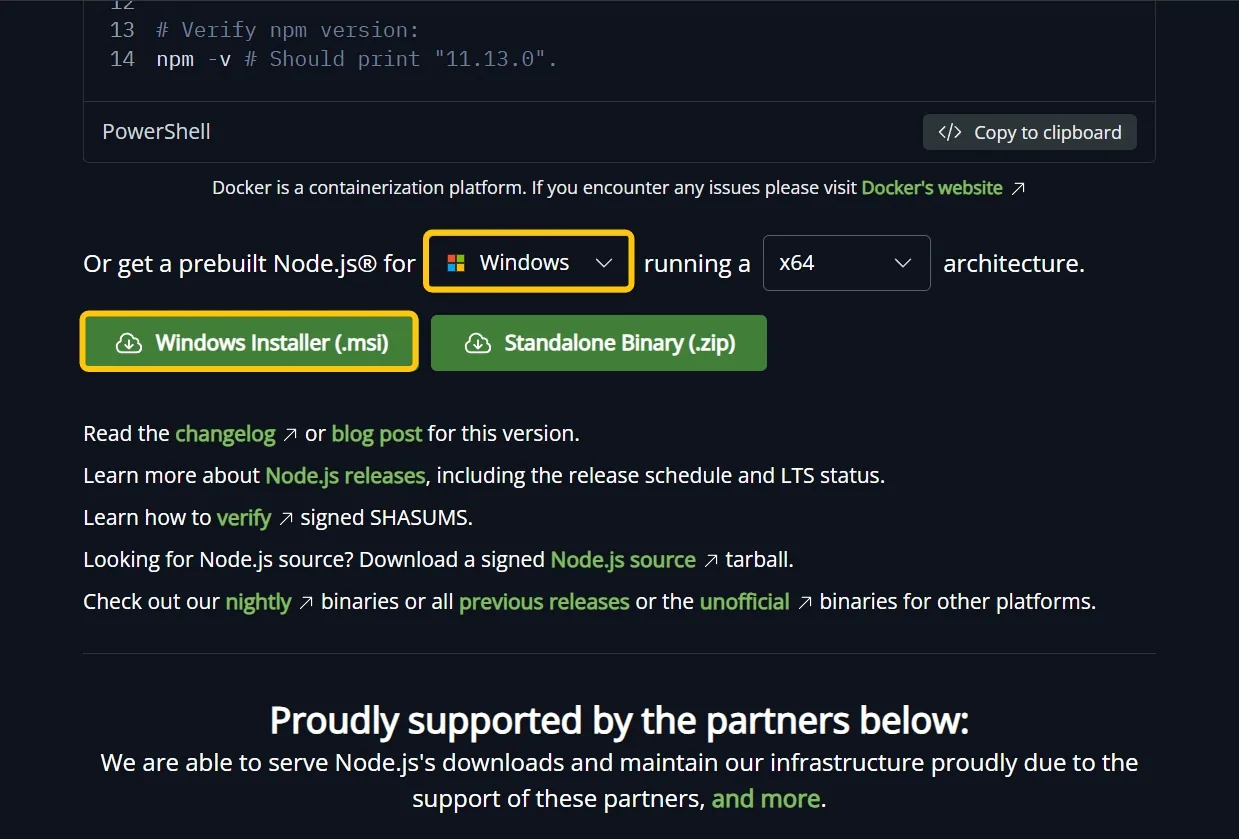
You need to download and install Node.js from the browser by selecting the version that matches your operating system.
After the installation is complete, click “Recheck”.
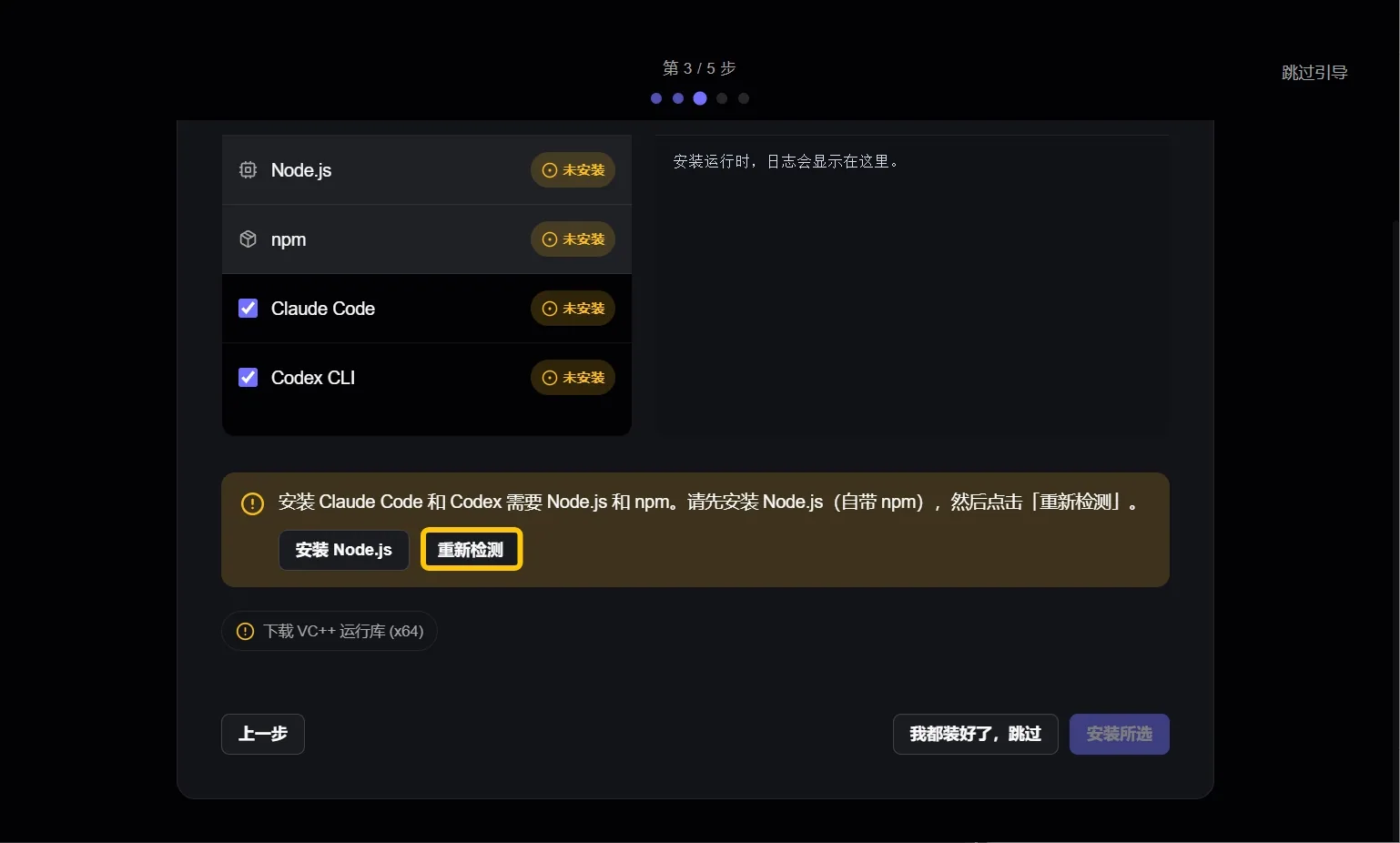
After selecting the desired coding agent, click “Install Selected”.
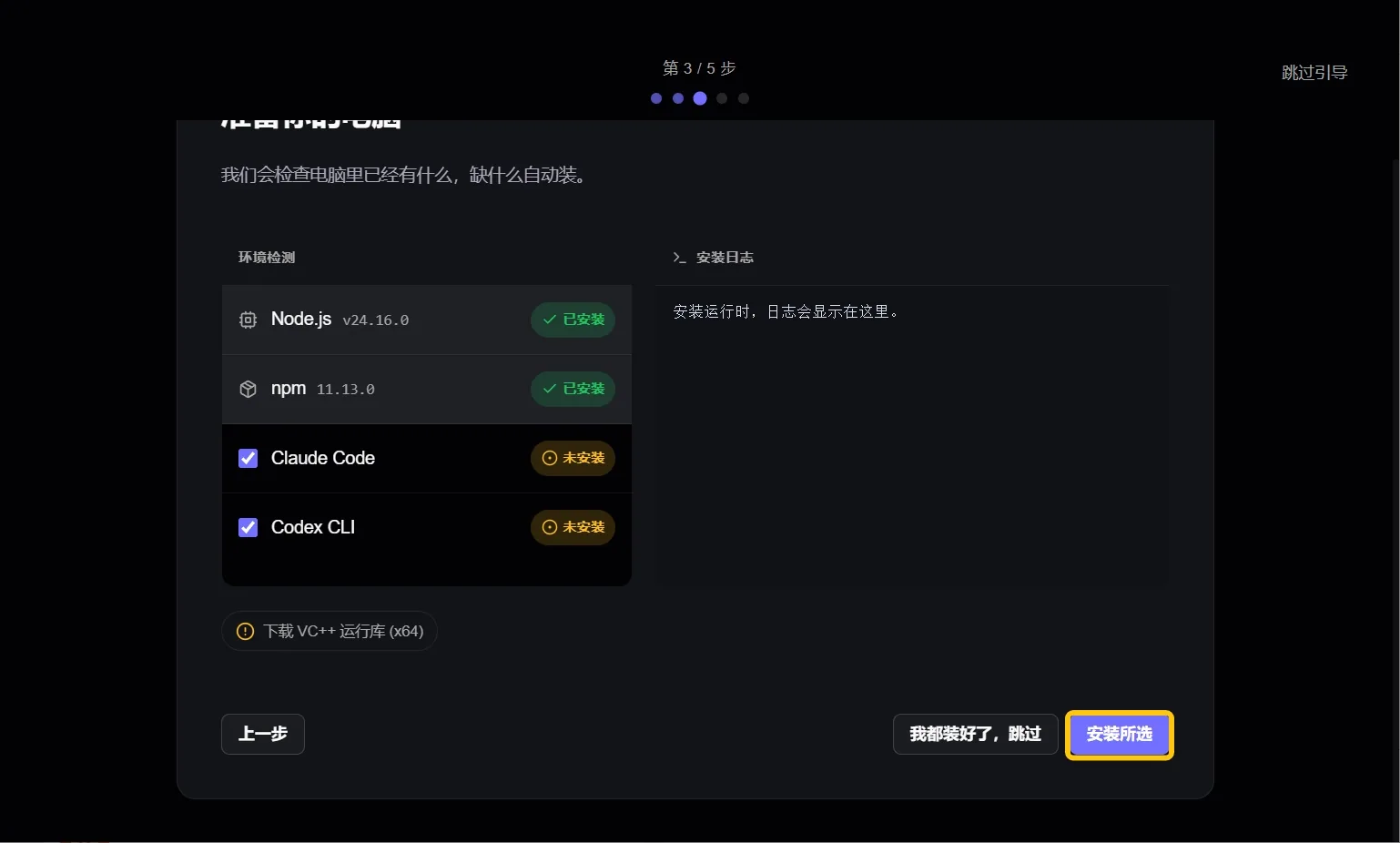
RouterLink will configure your coding agent. If you have configured it before, Starter will back up your previous configuration.
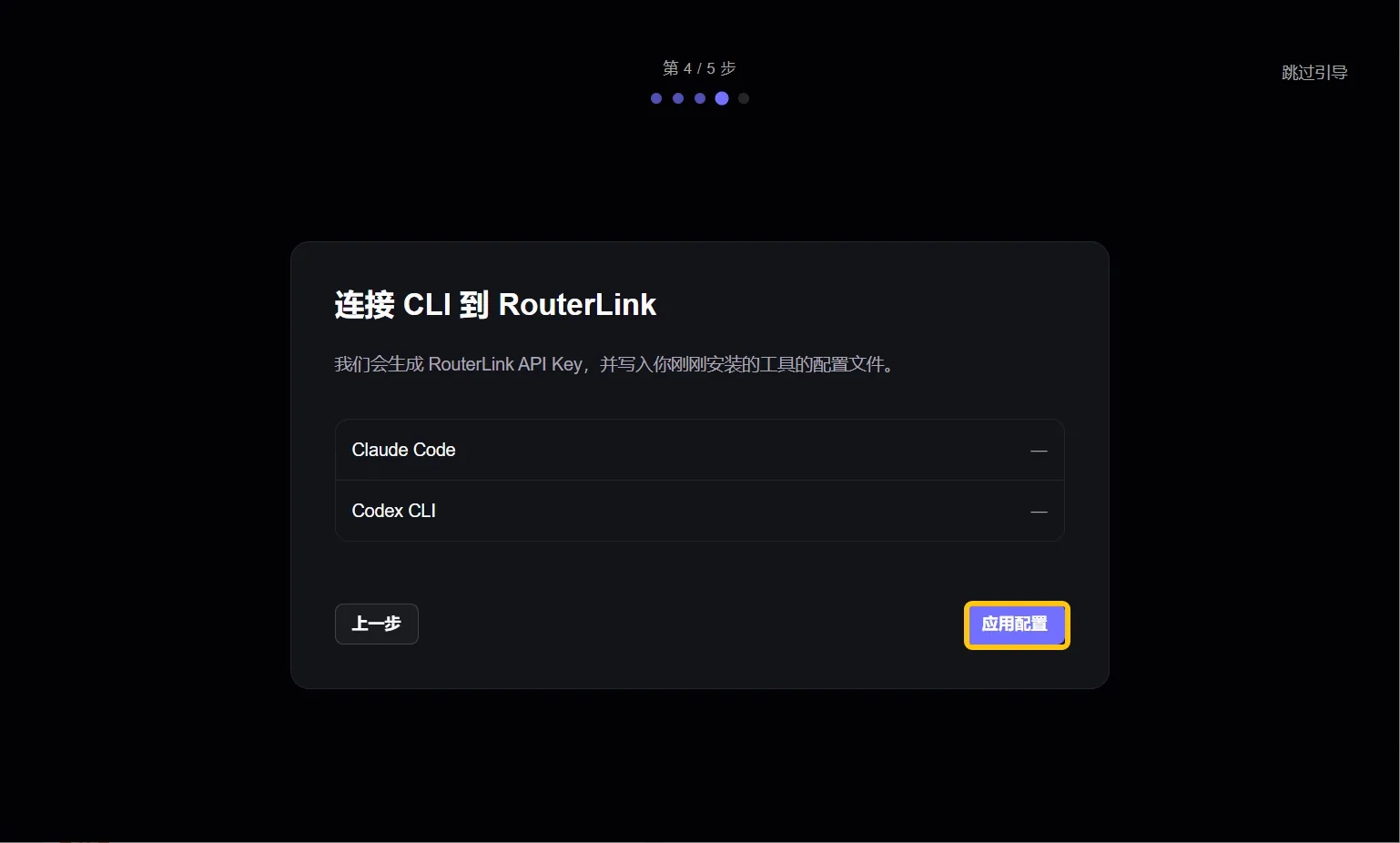
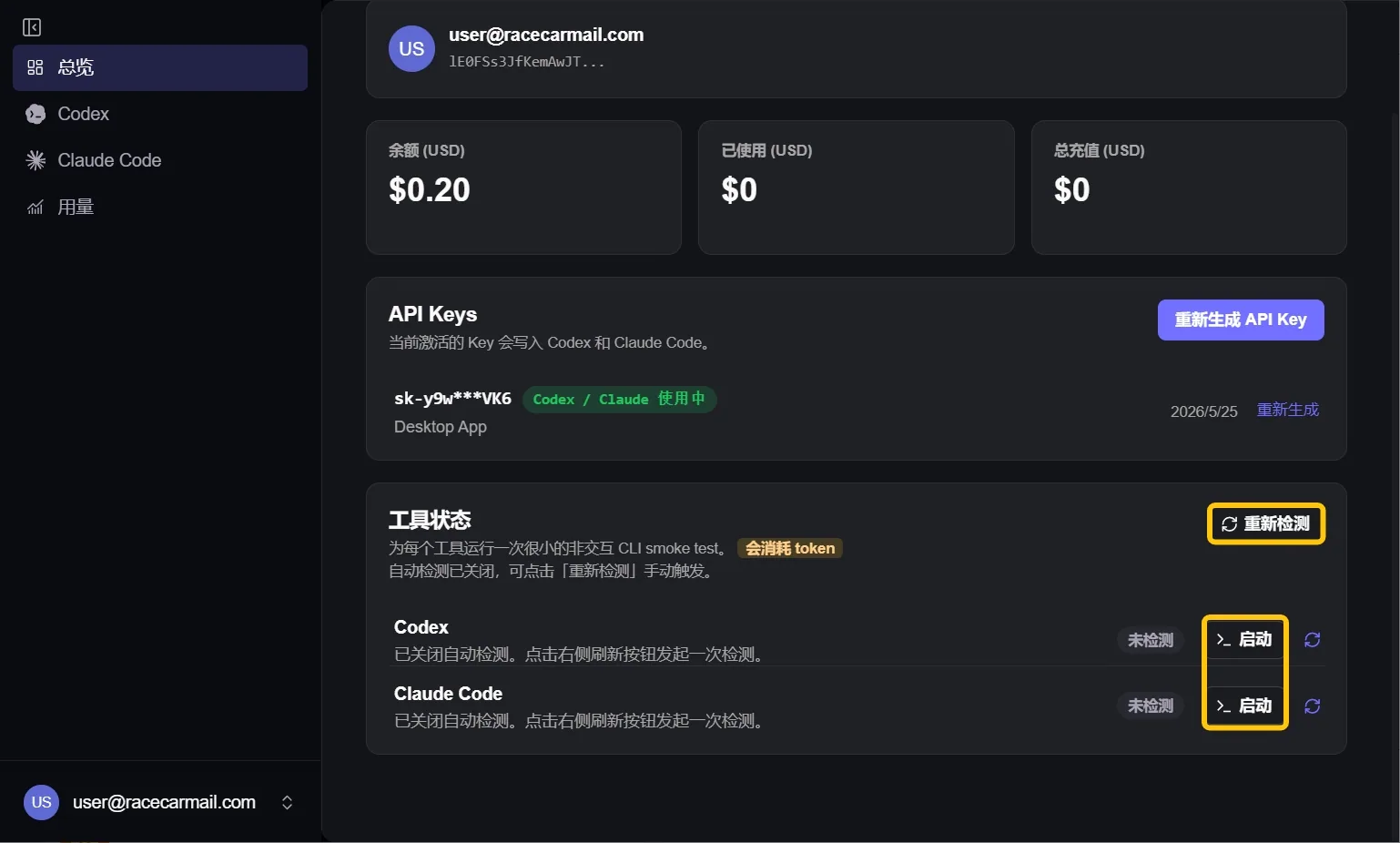
Launch
You can check the availability of the coding agent and quickly launch it from the main page.
Click the coding agent tag on the left to configure and use a new model.
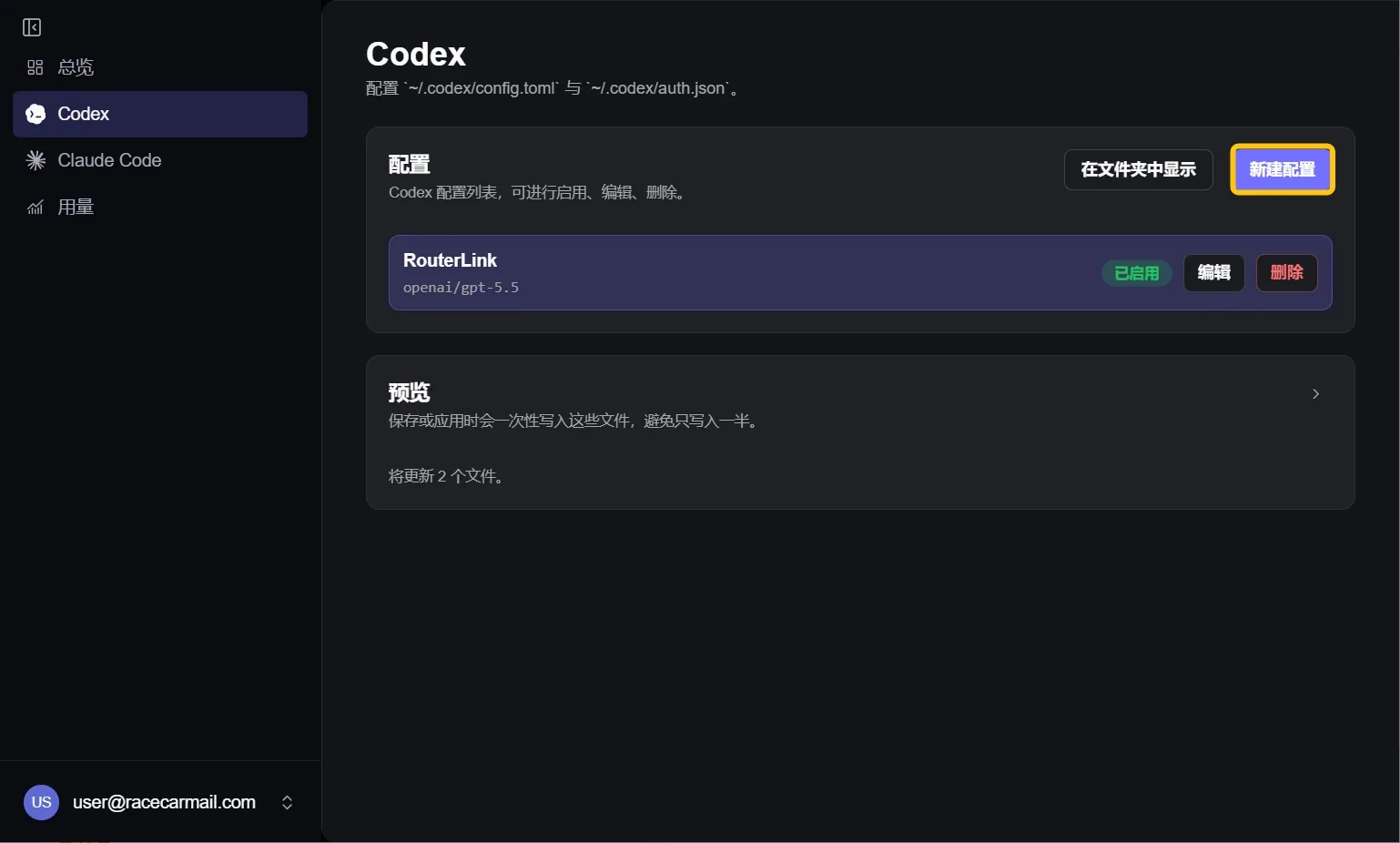
For example, to use DeepSeek V4 Pro, enter world3-router-north-america/deepseek/deepseek-v4-pro in the Codex model field.
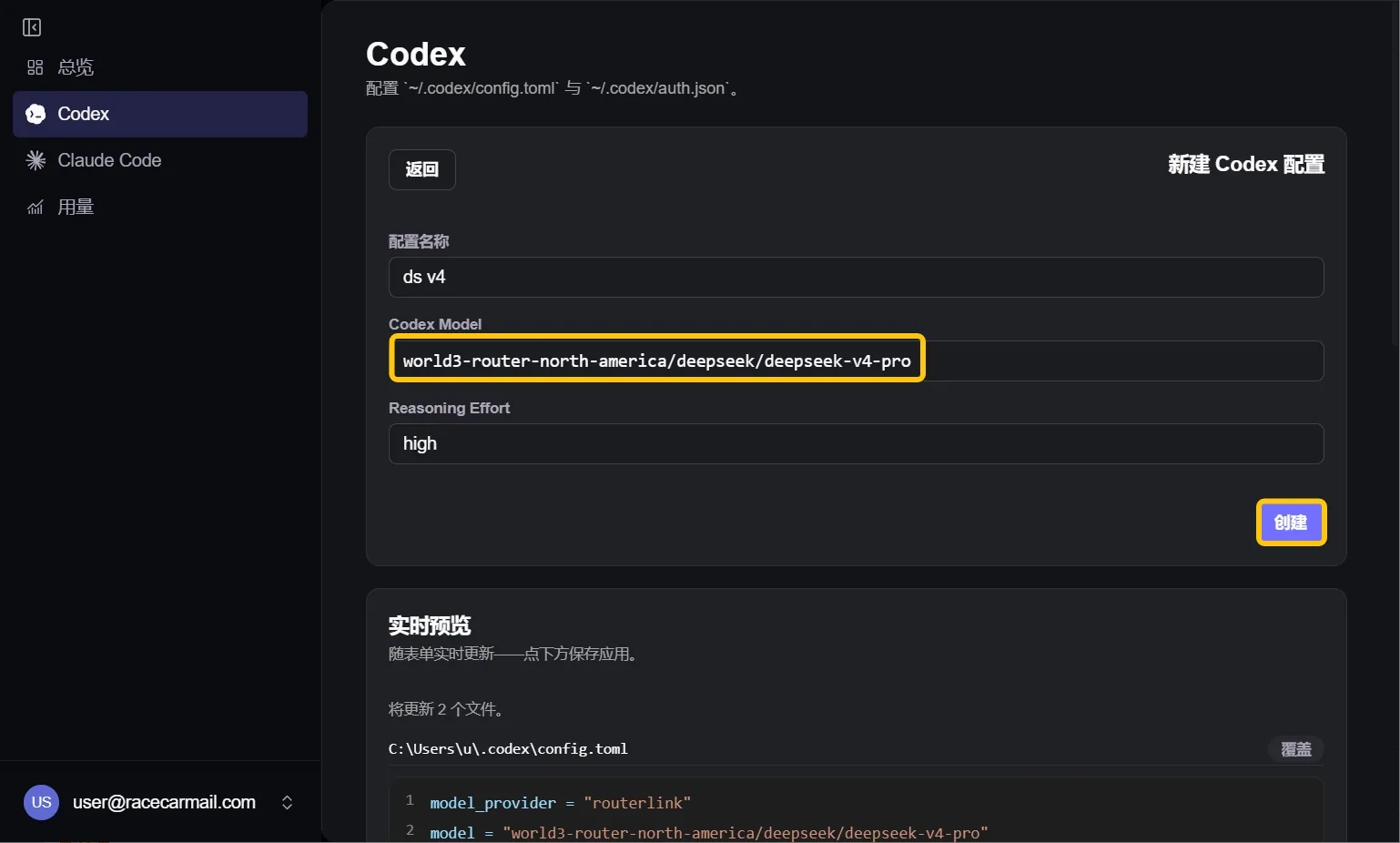
You can add other models based on these (Claude Code requires Anthropic-compatible models, while Codex requires OpenAI-compatible models):
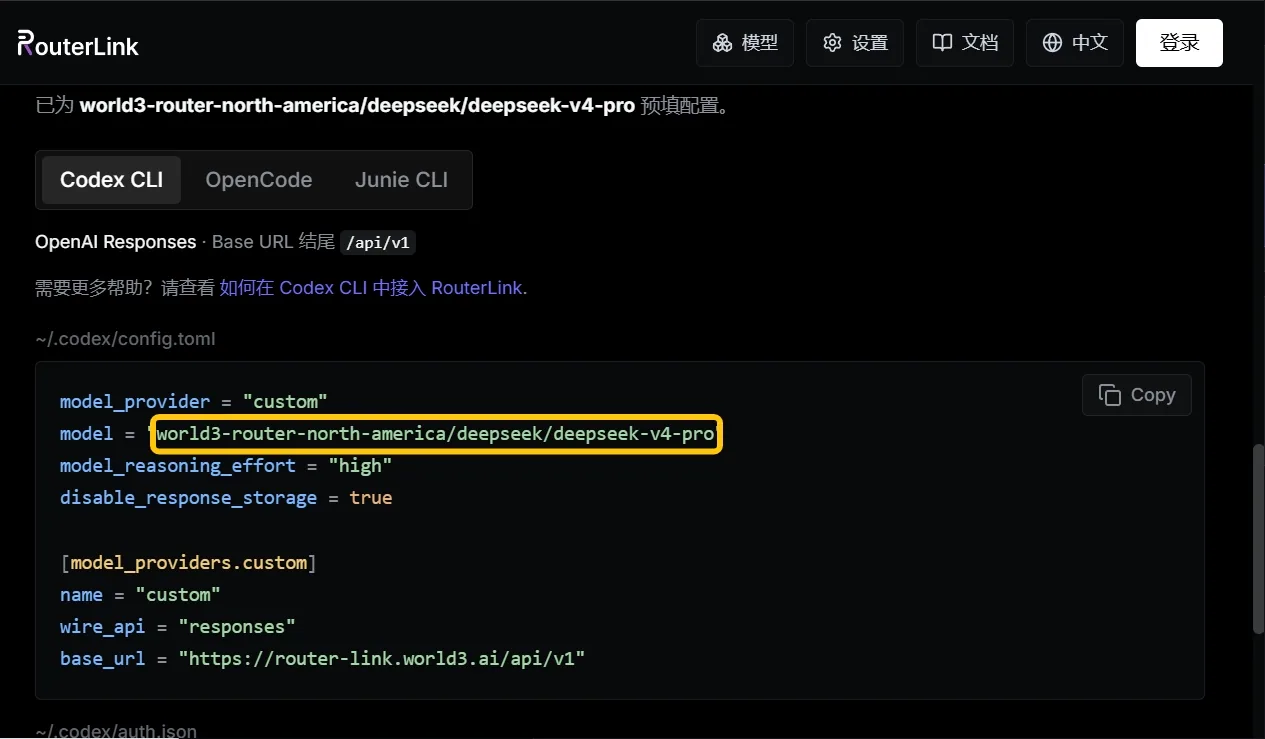
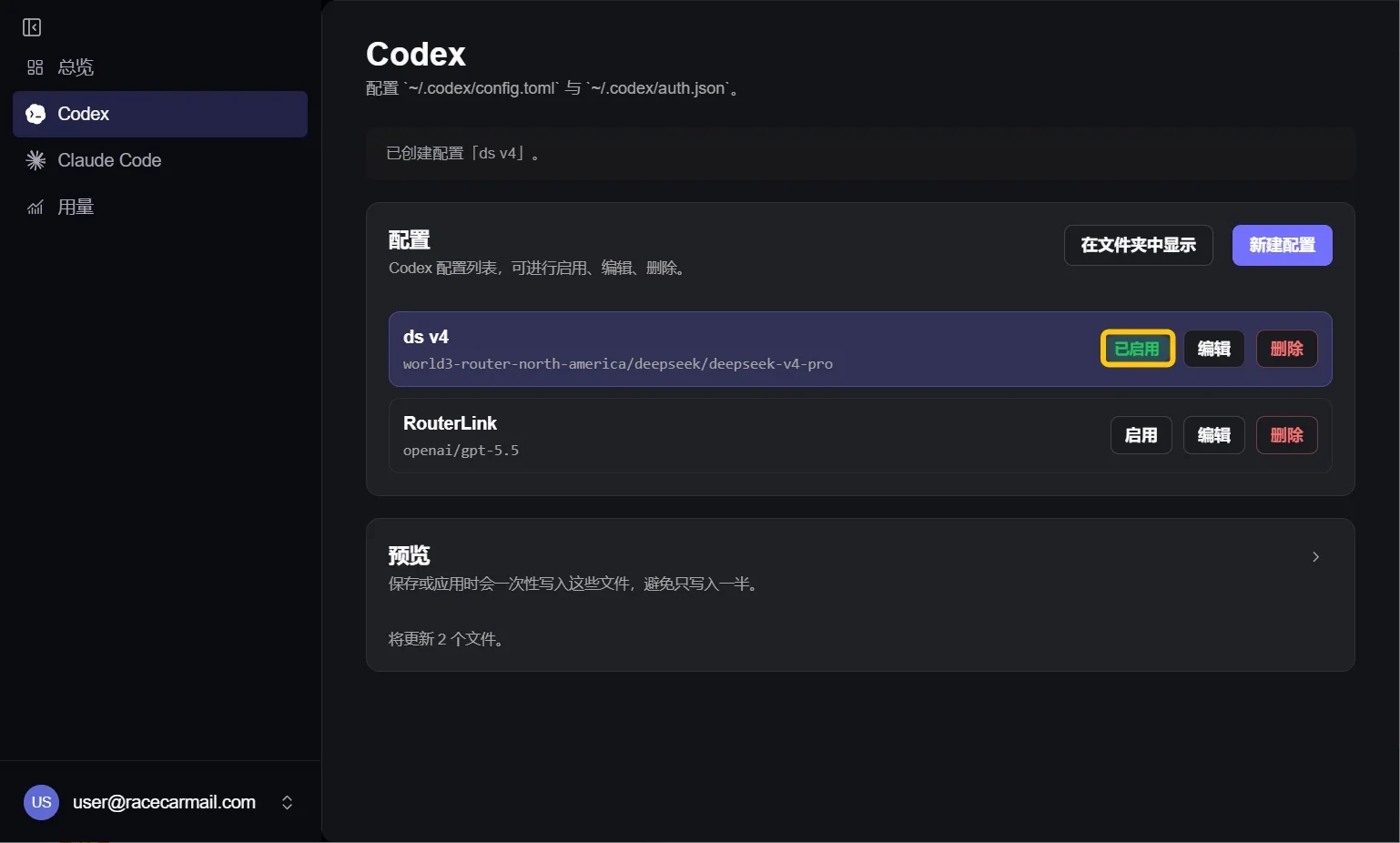
Make sure your newly created configuration is enabled.
Troubleshooting
Section titled “Troubleshooting”I’ve already configured Claude Code/Codex before. How can I switch back to my previous configuration?
After launching RouterLink Starter, click Claude or Codex on the left sidebar, then select “default” under Configs and click “Enable”.
API Error: 402 You don't have enough $WAI Credits to complete this request.
Your balance is insufficient. You can top up your account on the billing page. For more information: Price.
How do I update RouterLink Starter?
After launching RouterLink Starter, click your email address in the bottom-left corner, then go to Settings. On the right side, click “Check for updates” under Updates.