This documentation is provided for informational purposes only and demonstrates how to configure and use our API with third-party AI chat interfaces. Any third-party software, websites, or services mentioned are not operated, controlled, or endorsed by us.

Claude Code is an agentic coding tool that lives in your terminal, understands your codebase, and helps you code faster by executing routine tasks, explaining complex code, and handling git workflows - all through natural language commands.
If you have previously installed Claude Code, please run the following command in the terminal to update to the latest version. This may require administrator privileges.
Terminal window
claudeupdate
CLI - Node.js
RouterLink has already prepared installation scripts for you. You can run the following commands for one-click installation of Node.js and the corresponding coding agent.
curl -fsSL https://claude.ai/install.cmd-o install.cmd && install.cmd && del install.cmd
If you see The token '&&' is not a valid statement separator, you’re in PowerShell, not CMD. If you see 'irm' is not recognized as an internal or external command, you’re in CMD, not PowerShell. Your prompt shows PS C:\ when you’re in PowerShell and C:\ without the PS when you’re in CMD.
Native Windows setups require Git for Windows. Install it first if you don’t have it. WSL setups do not need it.
Native installations automatically update in the background to keep you on the latest version.
VS Code Extension
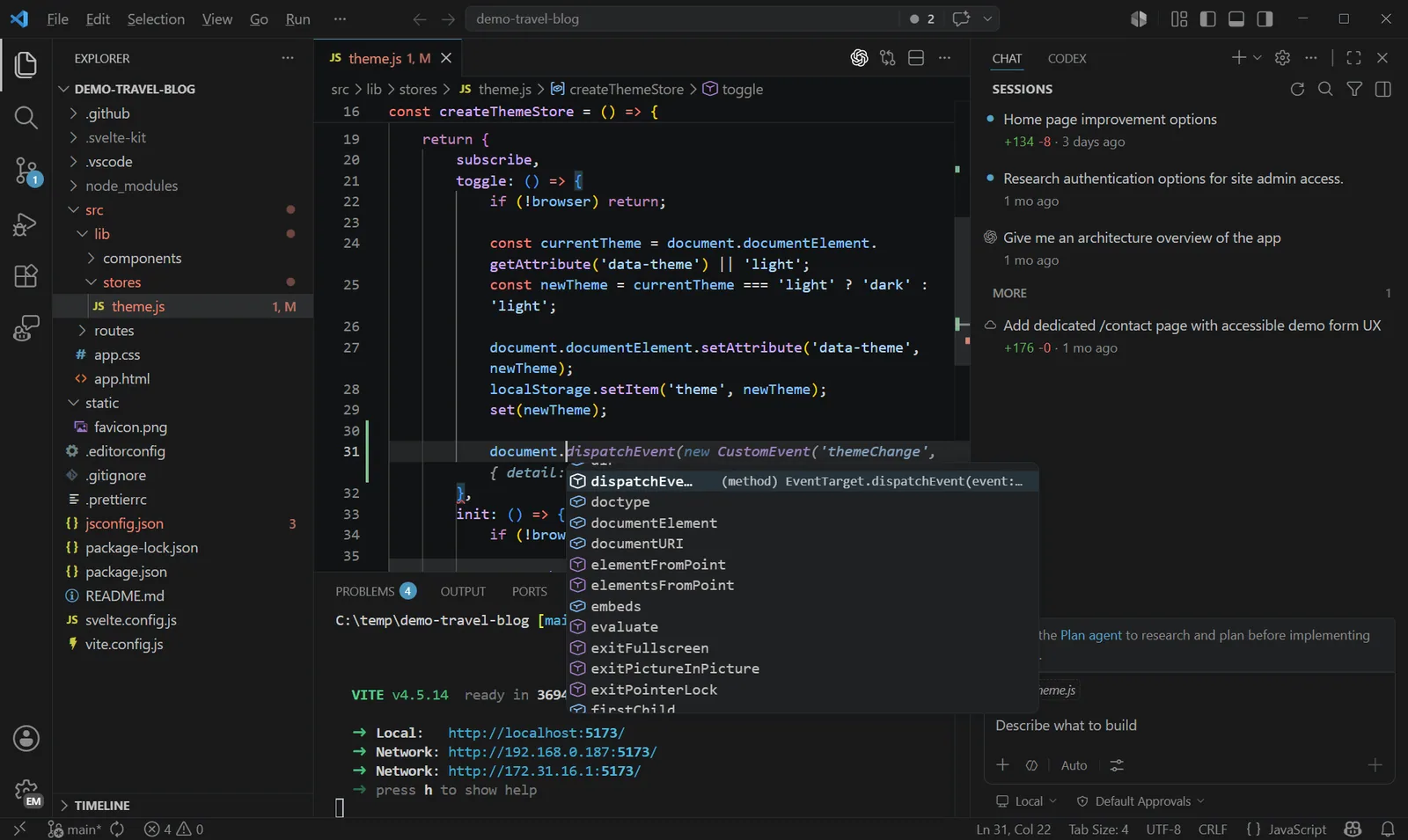
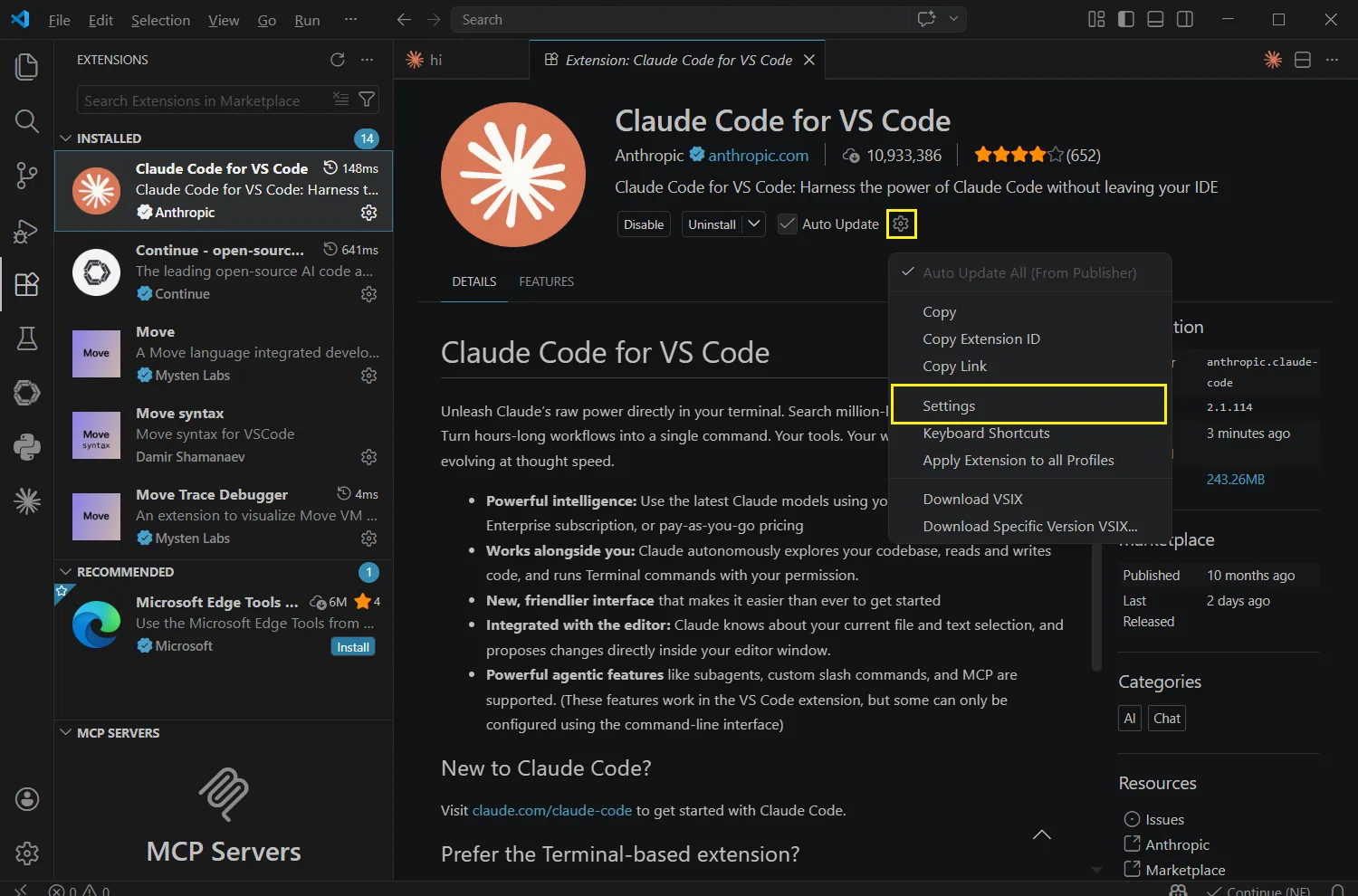
Install the Claude Code extension from the VS Code Marketplace — no separate CLI needed. The VS Code extension provides inline diffs, @-mentions, plan review, and conversation history directly in your editor.
Desktop App
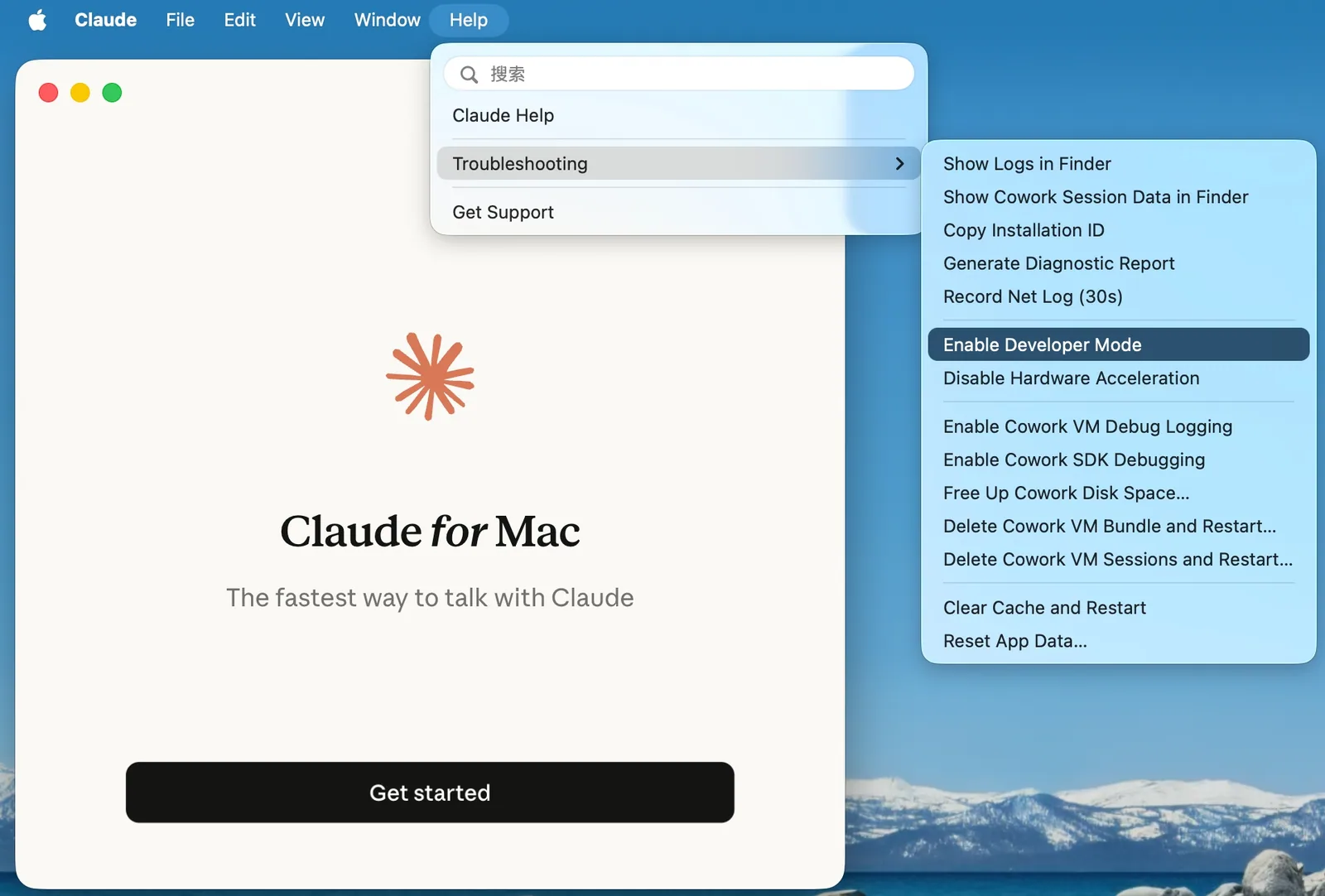
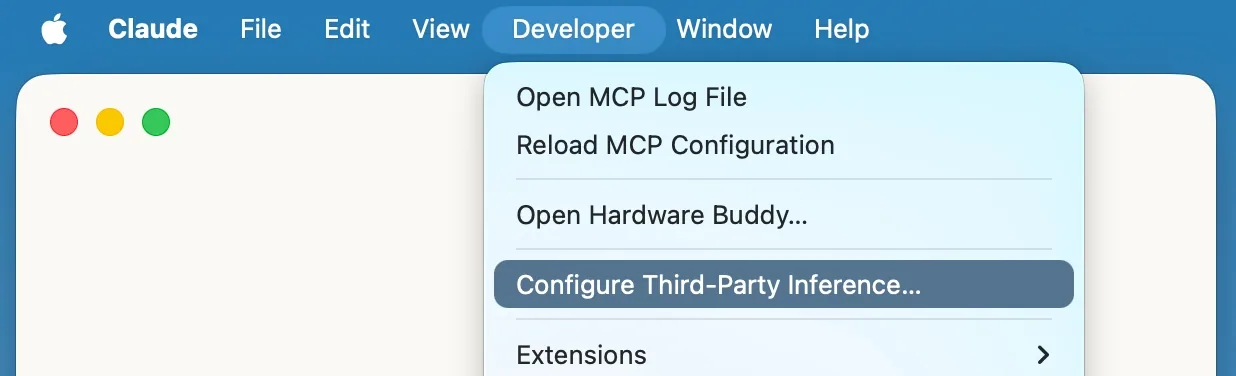
Please follow the tutorial to complete the installation.
Point Claude Code at RouterLink
CLI — settings.json
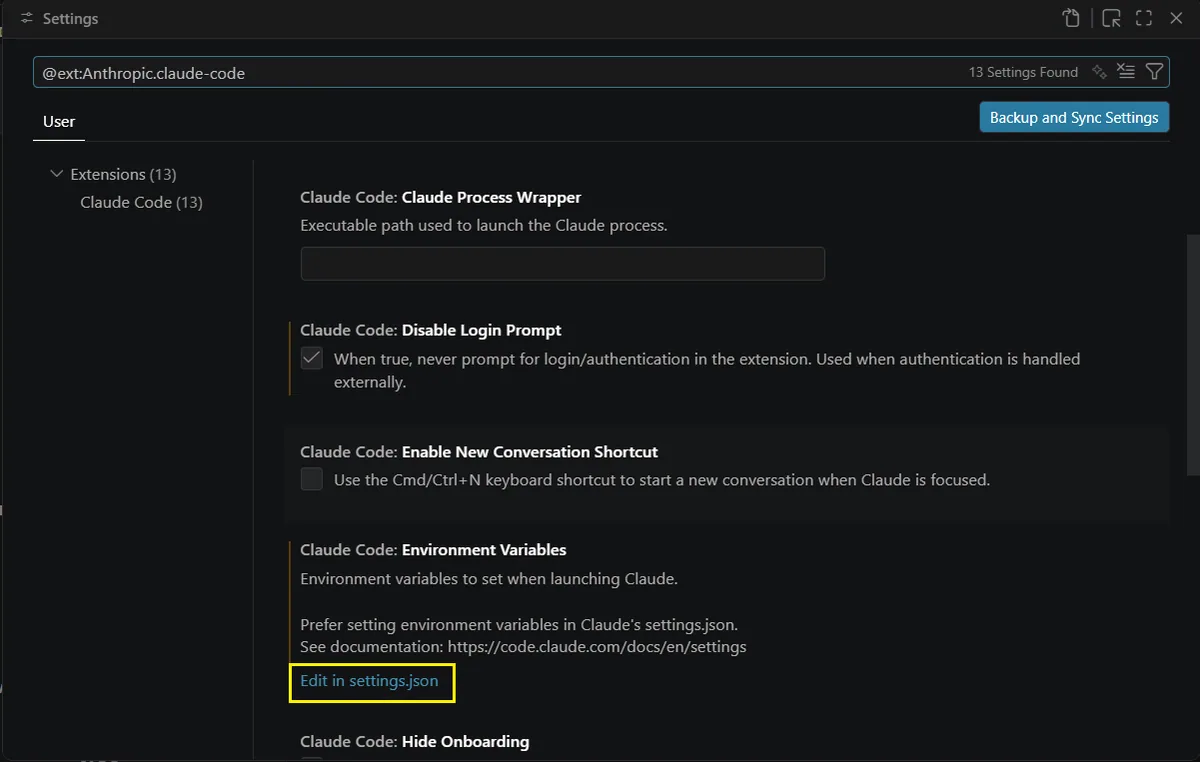
Claude Code officially supports managing persistent configuration through the settings system. For daily use, it is recommended to prioritize writing configurations into settings.json. Shell or system environment variables are better suited for temporary switching, CI scenarios, or as a fallback when encountering known issues in the current version.
Edit or create the settings.json file On macOS & Linux: ~/.claude/settings.json On Windows: C:\Users\<USERNAME>\.claude\settings.json
Make sure to replace <ROUTERLINK_API_KEY> with your API key from RouterLink. When replacing it, do not keep the angle brackets < and >.
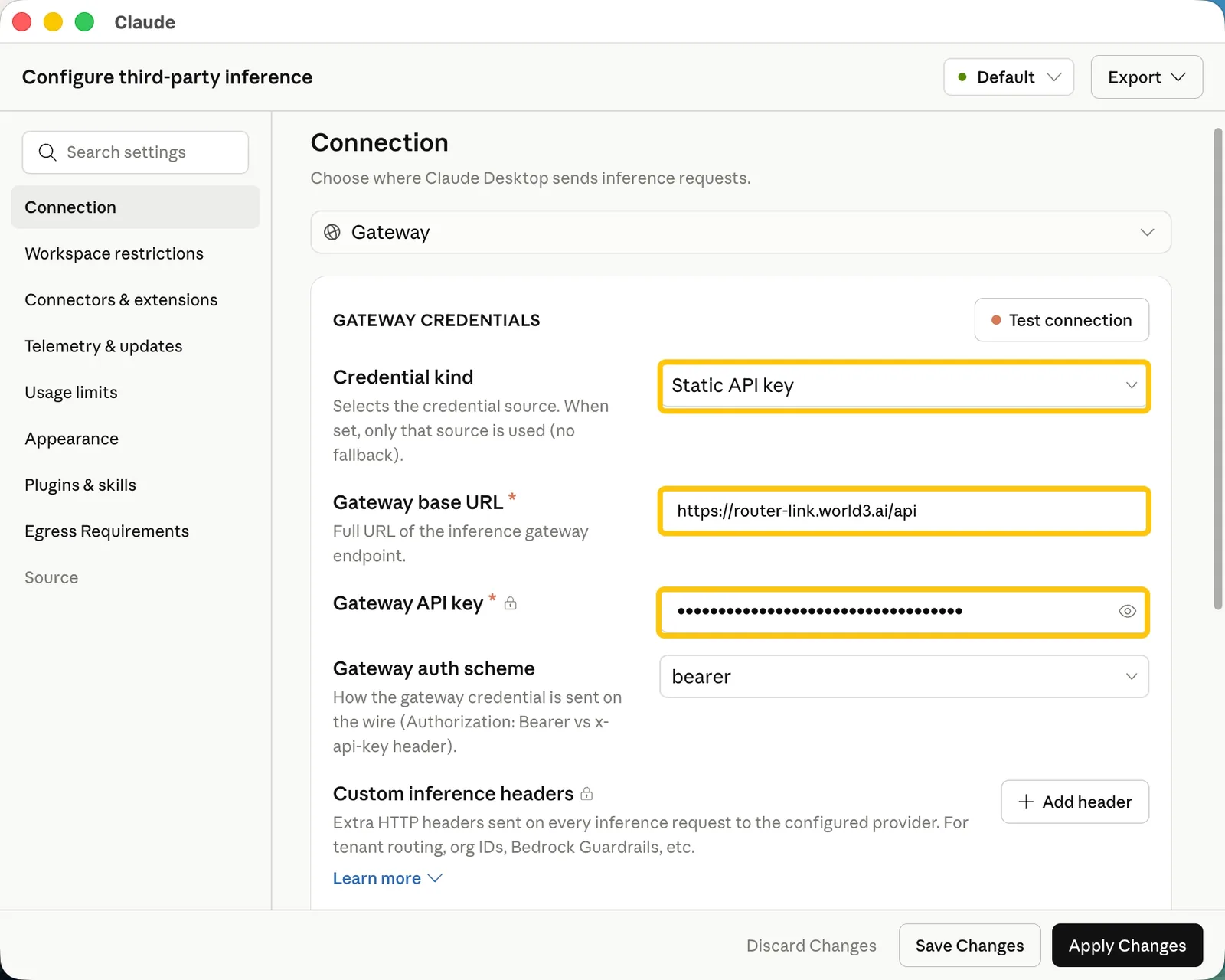
For Gateway API key, enter the actual API key you obtained from RouterLink Key.
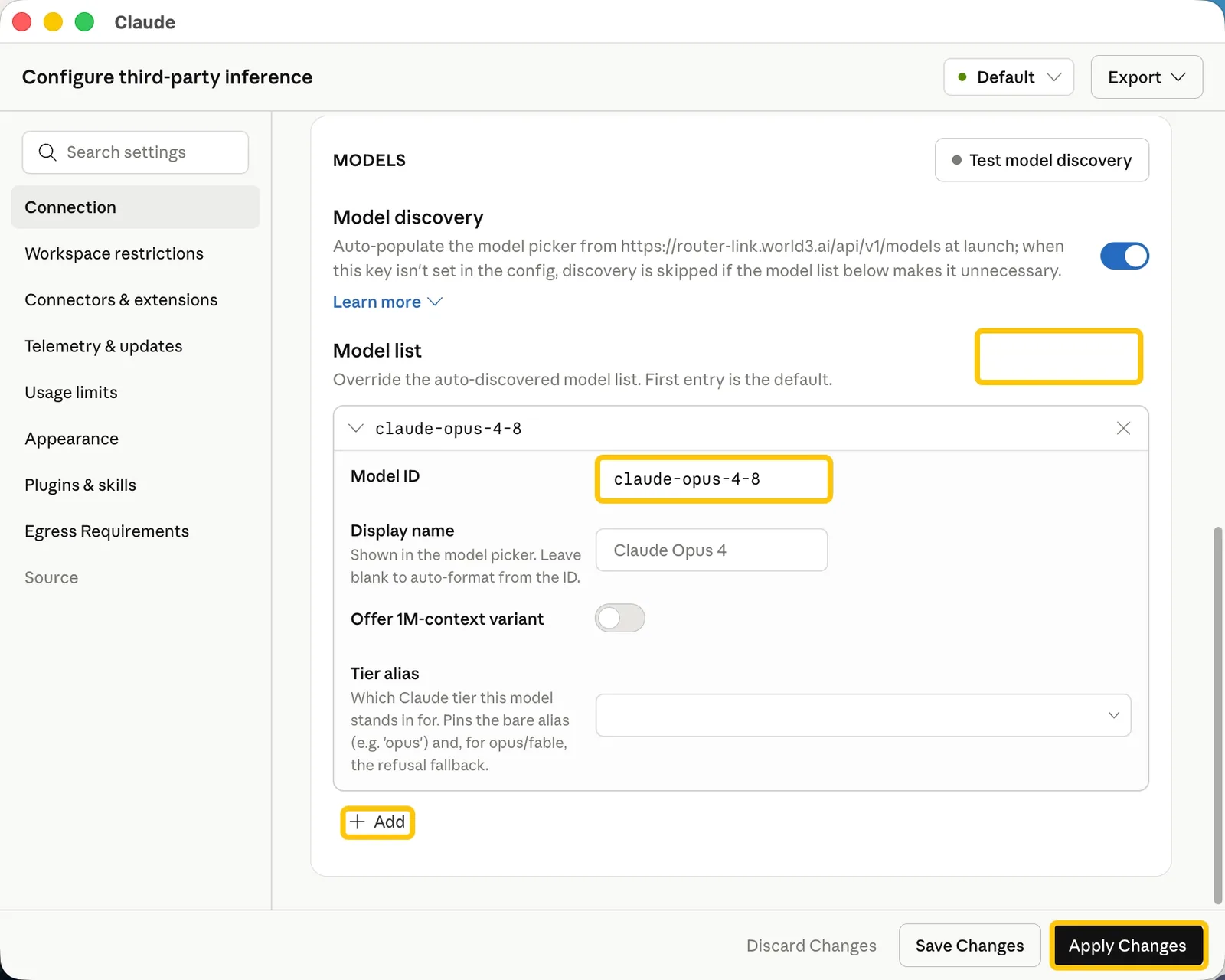
Scroll down the page and click “Add model”.
In the Model ID field, enter “claude-opus-5”, then click Add. Repeat the same steps to add “claude-sonnet-5”, “claude-haiku-4-5” and “claude-fable-5”.
Offer 1M-context variant can be enabled optionally.
Finally, click Apply Changes.
First launch
CLI
Navigate to your code working directory and run the claude command in the terminal to start using Claude Code.
Terminal window
claude
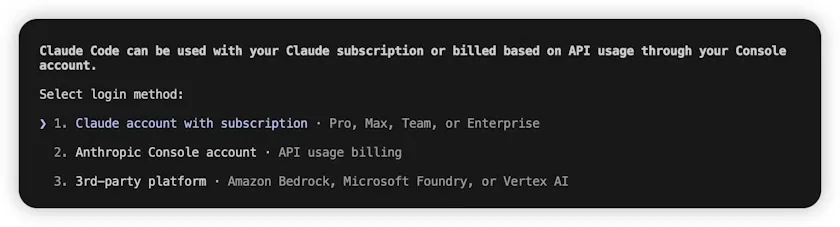
When using Claude Code for the first time, you may be forced to log in to an Anthropic account.
Please follow the steps below to skip this process:
Open or create the .claude.json file in the user’s home directory. The specific paths are as follows: macOS / Linux: ~/.claude.json Windows: C:\Users\<USERNAME>\.claude.json
Set the value of the hasCompletedOnboarding field to true.
{
"hasCompletedOnboarding": true
}
Save the file, then run claude again in the terminal.
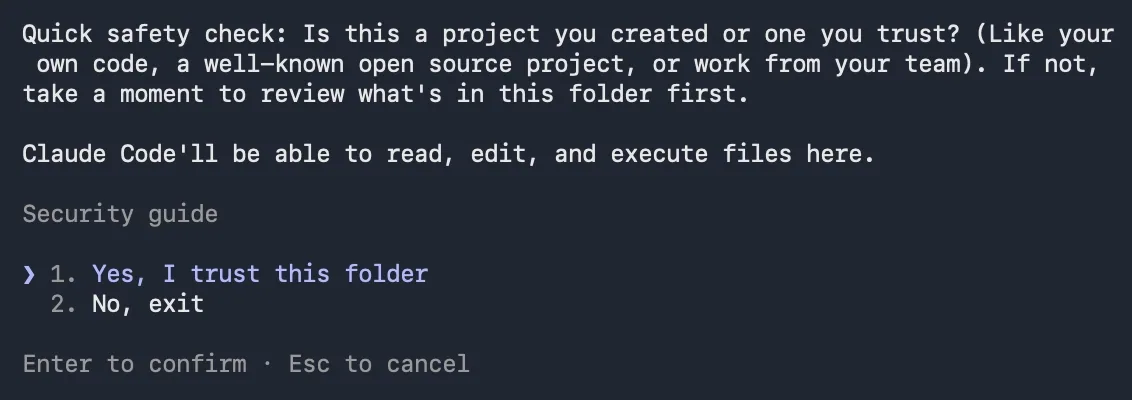
After launching, choose to trust Claude Code to access the files in the folder, as shown below:
Done! You can now use Claude Code normally.
VS Code Extension
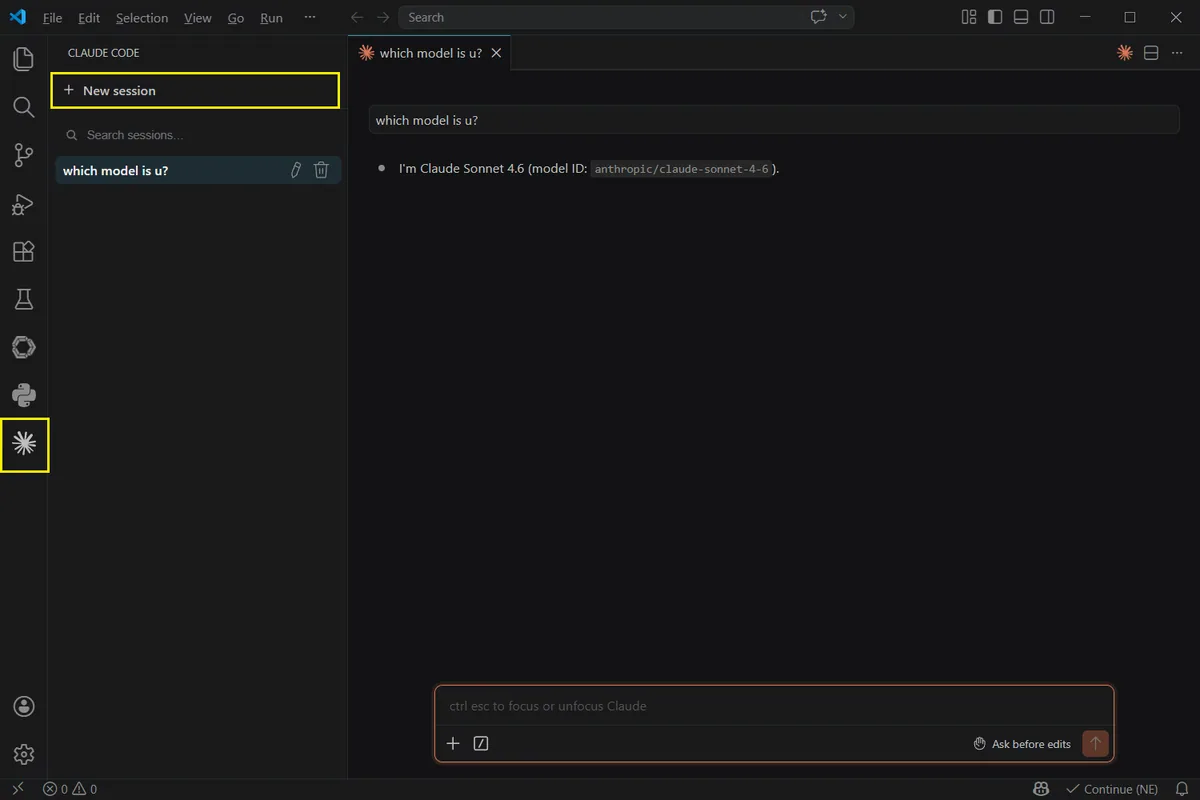
Click the Claude icon on the left, then select “New session” to start using Claude Code for VS Code.
Done! You can now use Claude Code for VS Code.
Desktop App
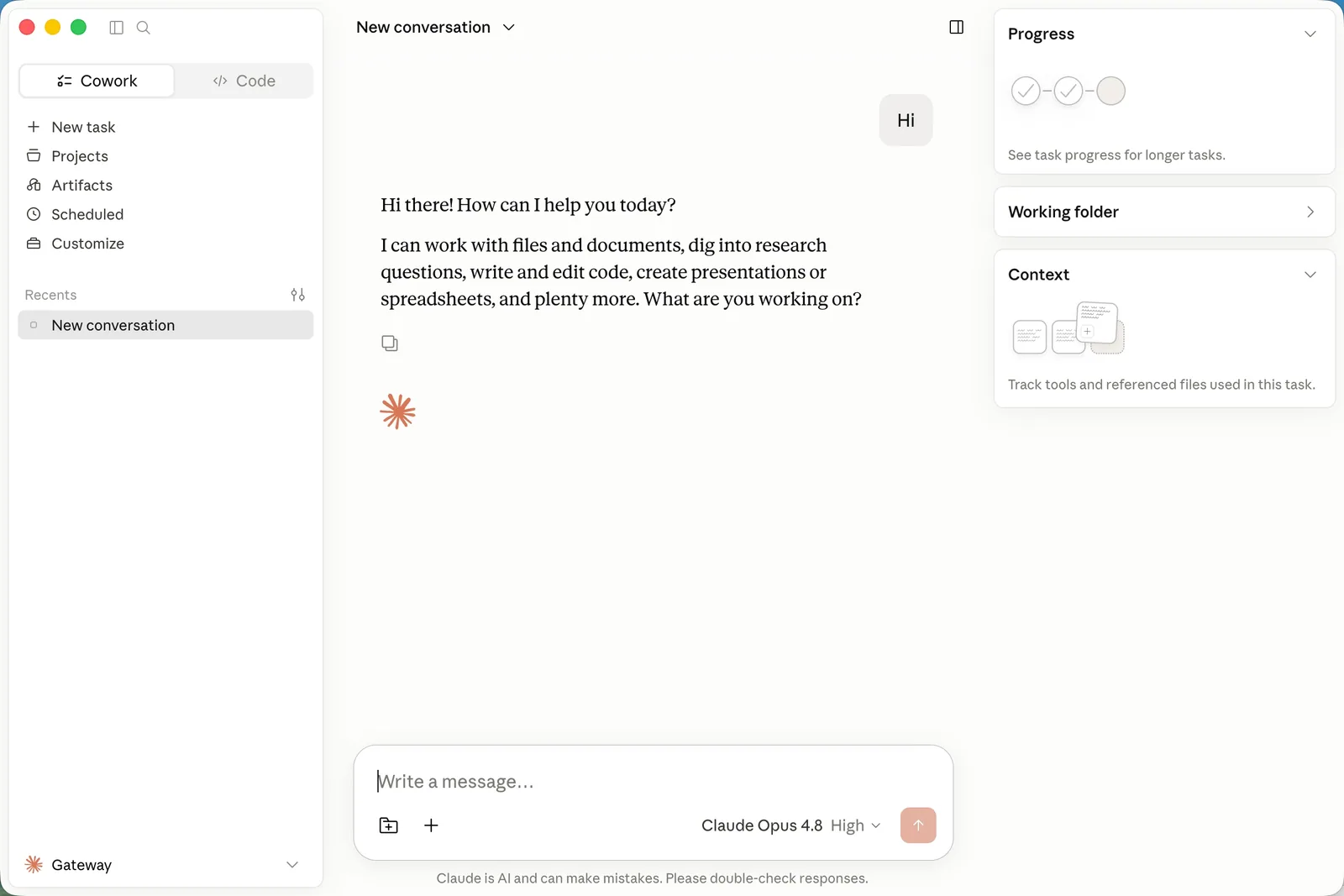
Open the Claude Desktop App, and you’re ready to start using it! 🚀
No response after entering a prompt / “You don’t have enough $WAI” error
Make sure your API input is correct. Due to the high token consumption of Anthropic models, the daily free quota may not support this model. Please top up your balance.
How can I switch to another model?
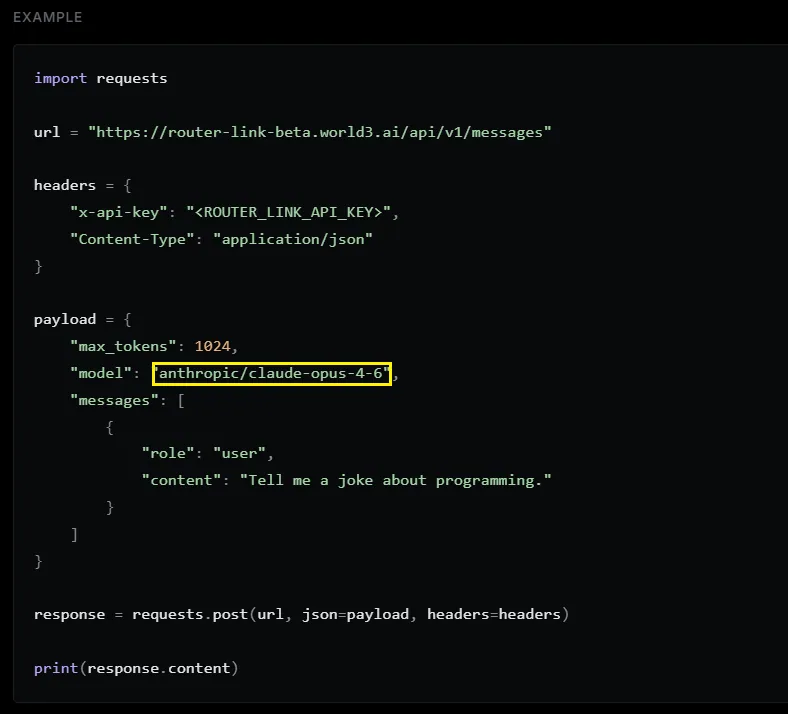
Claude Code only supports the Anthropic-format API. Go to https://routerlink.ai/models. Click on the model, set the API Format to “Anthropic,” and locate the model field in the code block.
Copy the model name from the model field and replace it in the settings.json file above.
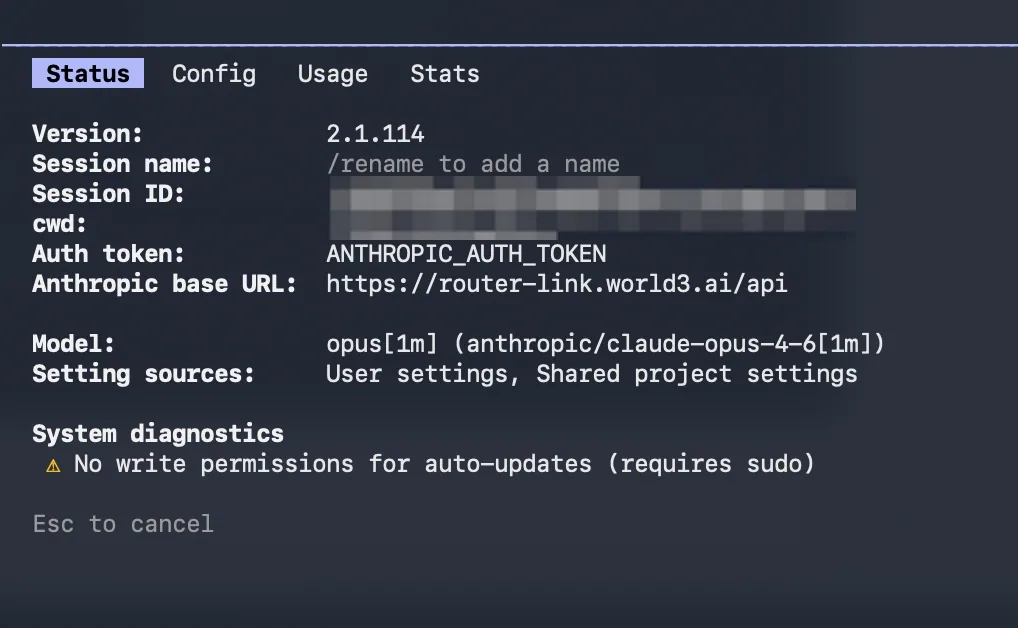
Open a new terminal window. Run claude to start Claude Code. Then enter /model to switch the model, and finally type /status to verify the model status.
Manual configuration changes not taking effect
If you have manually edited the ~/.claude/settings.json file but the changes are not applied, please try the following:
Close all Claude Code windows. Open a new terminal window and run claude again to restart.
If the issue persists, try deleting the ~/.claude/settings.json file and reconfigure the environment variables. Claude Code will automatically generate a new configuration file.
Make sure the JSON format of the configuration file is correct. Check for issues such as incorrect variable names, missing commas, or extra commas. You can use an online JSON validator to verify the file.