This documentation is provided for informational purposes only and demonstrates how to configure and use our API with third-party AI chat interfaces. Any third-party software, websites, or services mentioned are not operated, controlled, or endorsed by us.
Install the newest LTS version of Node.jsAfter installation is complete, open the terminal (Windows users use PowerShell) and check the version number.
Windows users may be unable to run scripts because of digital signature requirements. Please run the following command: Windows PowerShell:
Windows users may encounter issues running the software due to missing VC runtime libraries. Please download and install this software.
Before modifying the configuration file, you need to register a provider alias (Provider ID) in the local key manager. This step ensures the secure hosting of the API Key, preventing it from being hardcoded in plain text within the configuration file.Execute the authentication command:
Terminal window
opencodeauthlogin
Select the type: Locate and select “other” at the bottom of the list (you can directly type to search).
Define the ID: Enter “local”.
Enter the key: Input the token key API Key (sk-xxxx) that you have created from RouterLink.
Configure OpenCode
OpenCode uses the opencode.json file to parse provider parameters. Please locate and create/edit this file according to your operating system.
Edit or create opencode.json file
On macOS & Linux: ~/.config/opencode/opencode.json
On Windows: C:\Users\<USERNAME>\.config\opencode\opencode.json
Configuration file:
{
"$schema": "https://opencode.ai/config.json",
"provider": {
"local": {
"npm": "@ai-sdk/openai-compatible",
"name": "local",
"options": {
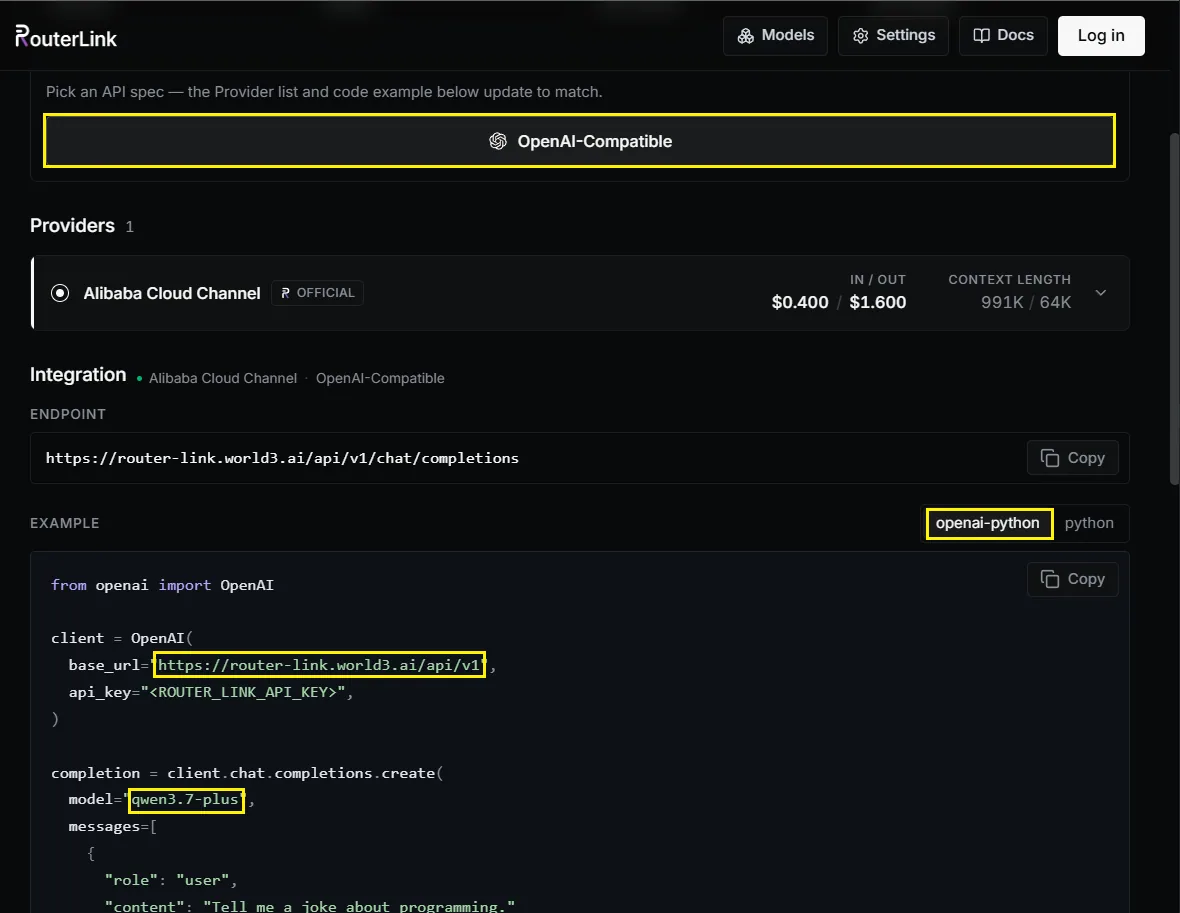
"baseURL": "https://router-link.world3.ai/api/v1"
},
"models": {
"gpt-5.5": {
"name": "gpt-5.5"
},
"gemini-3.1-pro-preview": {
"name": "gemini-3.1-pro-preview"
},
"claude-opus-4-8": {
"name": "claude-opus-4-8"
}
}
}
}
}
npm: Use @ai-sdk/openai-compatible to adapt to the OpenAI-compatible protocol.
baseURL: Enter the API endpoint of the RouterLink platform.
models: You need to manually declare the list of models supported by OpenAI=compatible protocal. The keys must correspond to the actual Model IDs:
OpenCode Loading and Validation
Launch the main program:
Terminal window
opencode
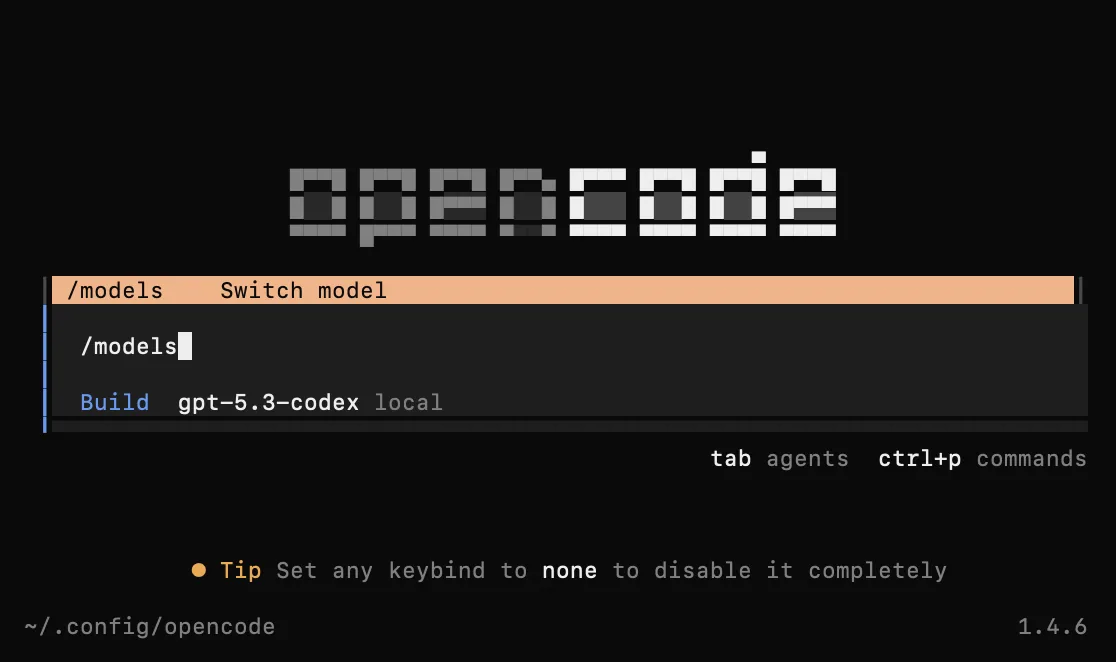
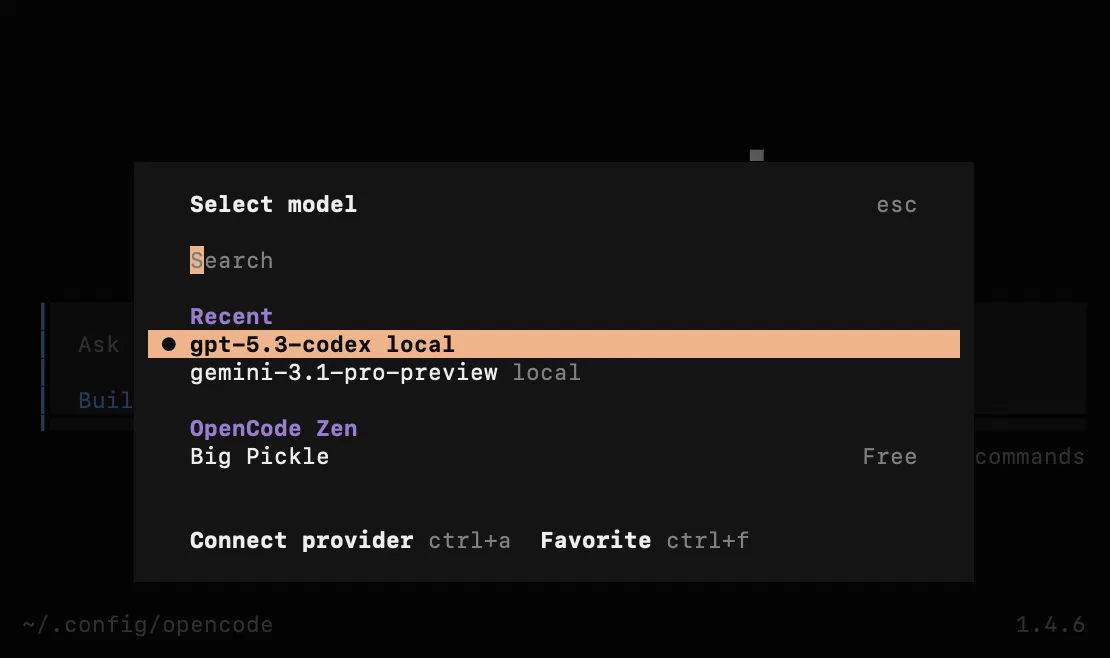
Enter the following command in the interactive prompt to open the model menu: /models.
If the configuration is correct, you will see its models listed.